Ghost
The Ghost modules allow you to create, update, list, and/or delete authors, posts, pages, and tags in your Ghost account.
Prerequisites
-
A Ghost account
-
A site in Ghost
In order to use Ghost with Boost.space Integrator, it is necessary to have a Ghost account. If you do not have one, you can create a Ghost account at //ghost.org/.
Connecting Ghost to Boost.space Integrator
To connect your Ghost account to Boost.space Integrator, you need to obtain your API URL, Admin API Key, and Boost.space Integrator ID.
1. Log in to your Ghost Account.
2. From the left menu, click_Integrations_ and select your Boost.space Integrator integration which you want to use for establishing a connection to Boost.space Integrator.

To add integration in your Ghost site, see Adding Boost.space Integrator Integrations in Ghost.
3. Copy the Admin API Key, and API URL to your clipboard.

4. On the same page, in the Webhooks section, copy the Boost.space Integrator ID to your clipboard.

5. Go to Boost.space Integrator and open the Ghost module’s Create a connection dialog.

6. In the Connection name field, enter a name for the connection.
7. In the API URL and Admin API Key fields, enter the values copied in the step 3 in the respective fields.
8. In the Boost.space Integrator ID field, enter the values copied in step 4 and click Continue.
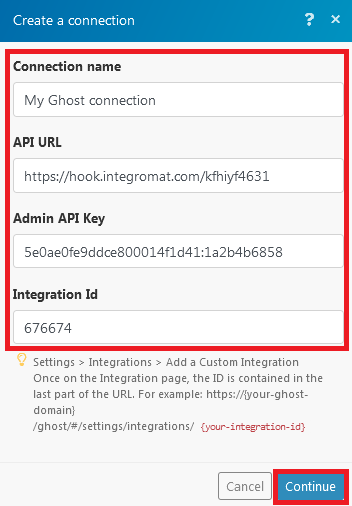
The connection has been established.
Posts
Watch Posts
Triggers when a post is created, updated, or deleted.
Webhook name
Enter a name for the webhook.
Connection
Establish a connection to your Ghost account.
Event
Select the event you want to watch:
-
Post created
-
Post updated
-
Post deleted
-
Post published
-
Published post updated
-
Post unpublished
-
Tag added to post
-
Tag removed from post
Create a Post
Creates a post.
Connection
Establish a connection to your Ghost account.
Title
Enter a title for the post.
Status
Select the status of the post:
-
Draft
-
Scheduled
-
Published
Slug
Enter the slug details of the website where the post is getting published.
Type of Content
Select the content type for the post:
-
HTML
-
Mobiledoc
HTML
Enter the content of the post in HTML format.
Mobiledoc
Enter the content of the post in HTML format.
Custom Excerpt
Enter the length of the words for the post.
Feature Image
Enter the link to the image that appears along with the post.
Tags
Add keywords for the post that can be used to filter the post when searching.
Authors
Add authors for the post. You can add multiple authors.
Featured
Select _Yes_if this is a featured post:
-
Yes
-
No
-
Not defined
Canonical URL
Enter the post website URL that represents almost the original website URL.
Meta Title
Enter the title URL of the post that appears in the search engine results.
Meta Description
Enter the description that appears in the search engine results below the URL link.
Facebook Title
Enter the Facebook title of the post.
Facebook Description
Enter the details of the post to mention on Facebook.
Facebook Image
Enter the image link to upload on Facebook.
Twitter Title
Enter the Twitter title of the post.
Twitter Description
Enter the details of the post to mention on Twitter.
Twitter Image
Enter the link for the Twitter profile image.
Search Posts
Lists all posts or searches posts by criteria.
Connection
Establish a connection to your Ghost account.
Criteria
Select the criteria to filter the posts you want to search for. For example, Member ID, created date, name, email, and so on.
Limit
The maximum number of posts Boost.space Integrator should return during one scenario execution cycle.
Update a Post
Updates a Post.
Connection
Establish a connection to your Ghost account.
Post ID
Select the Post ID you want to update.
Title
Enter a title for the post.
Status
Select the status of the post:
-
Draft
-
Scheduled
-
Published
Slug
Enter the slug details of the website where the post is getting published.
Type of Content
Select the content type for the post:
-
HTML
-
Mobiledoc
HTML
Enter the content of the post in HTML format.
Mobiledoc
Enter the content of the post in HTML format.
Custom Excerpt
Enter the length of the words for the post.
Feature Image
Enter the link to the image that appears along with the post.
Tags
Add keywords for the post that can be used to filter the post when searching.
Authors
Add authors for the post. You can add multiple authors.
Featured
Select _Yes_if this is a featured post:
-
Yes
-
No
-
Not defined
Canonical URL
Enter the post website URL that represents almost the original website URL.
Meta Title
Enter the title URL of the post that appears in the search engine results.
Meta Description
Enter the description that appears in the search engine results below the URL link.
Facebook Title
Enter the Facebook title of the post.
Facebook Description
Enter the details of the post to mention on Facebook.
Facebook Image
Enter the image link to upload on Facebook.
Twitter Title
Enter the Twitter title of the post.
Twitter Description
Enter the details of the post to mention on Twitter.
Twitter Image
Enter the image link to upload on Twitter.
Delete a Post
Deletes a post.
Connection
Establish a connection to your Ghost account.
Post ID
Select the Post ID you want to delete.
Pages
Watch Pages
Triggers when a page is created, updated, or deleted.
Webhook name
Enter a name for the webhook.
Connection
Establish a connection to your Ghost account.
Event
Select the event you want to watch:
-
Page created
-
Page updated
-
Page deleted
-
Page published
-
Published page updated
-
Page unpublished
-
Tag added to page
-
Tag removed from page
Tags
Watch Tags
Triggers when a tag is created, updated, or deleted.
Webhook name
Enter a name for the webhook.
Connection
Establish a connection to your Ghost account.
Event
Select the event you want to watch:
-
Tag created
-
Tag updated
-
Tag deleted
Authors
Search Authors
Lists all members or searches members by criteria.
Connection
Establish a connection to your Ghost account.
Criteria
Select the criteria for the members you want to search for. For example, Member ID, created date, name, email, and so on.
Limit
The maximum number of authors Boost.space Integrator should return during one scenario execution cycle.
Member
Watch Members
Triggers when a member is created, updated, or deleted.
Webhook Name
Enter a name for the webhook.
Connection
Establish a connection to your Ghost account.
Event
Select the event you want to watch:
-
Member added
-
Member updated
-
Member deleted
Create a Member
Creates a member.
Connection
Establish a connection to your Ghost account.
Name
Enter the name of the member.
Enter the email address of the member.
Note
Enter any additional details of the member.
Subscribed to newsletter
Select _Yes_if the member is subscribed for the newsletter:
-
Yes
-
No
-
Not defined
Search Members
Lists all members or searches members by criteria.
Connection
Establish a connection to your Ghost account.
Criteria
Select the criteria for the members you want to search for. For example, Member ID, created date, name, email, and so on.
Limit
The maximum number of members Boost.space Integrator should return during one scenario execution cycle.
Delete a Member
Deletes a member.
Connection
Establish a connection to your Ghost account.
Member ID
Select the Member ID you want to delete.
Other
Make an API Call
Performs an arbitrary authorized API call.
Connection
Establish a connection to your Ghost account.
URL
Enter a path relative to {{your_host}}/ghost/api. E.g. /v3/admin/site.
For the list of available endpoints, refer to the Ghost API Documentation.
Method
Select the HTTP method you want to use:
GETto retrieve information for an entry.
POSTto create a new entry.
PUTto update/replace an existing entry.
PATCHto make a partial entry update.
DELETEto delete an entry.
Headers
Enter the desired request headers. You don’t have to add authorization headers; we already did that for you.
Query String
Enter the request query string.
Body
Enter the body content for your API call.
Example – List Posts
Following API call returns all posts:
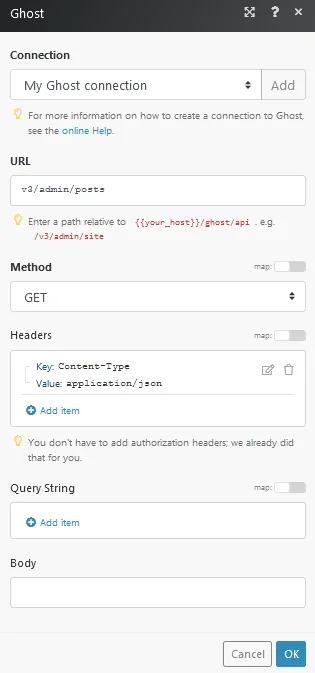
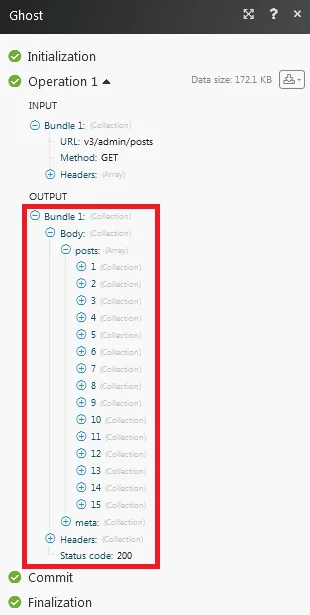
Matches of the search can be found in the module’s Output under Bundle > Body > _posts._In our example, 15 posts were returned:
Adding Boost.space Integrator Integrations in Ghost
To add integrations in Ghost:
1. Log in to your Ghost account.
2. From the left menu, click Integration –> Add custom integration. Enter a name for the integration and click Create.
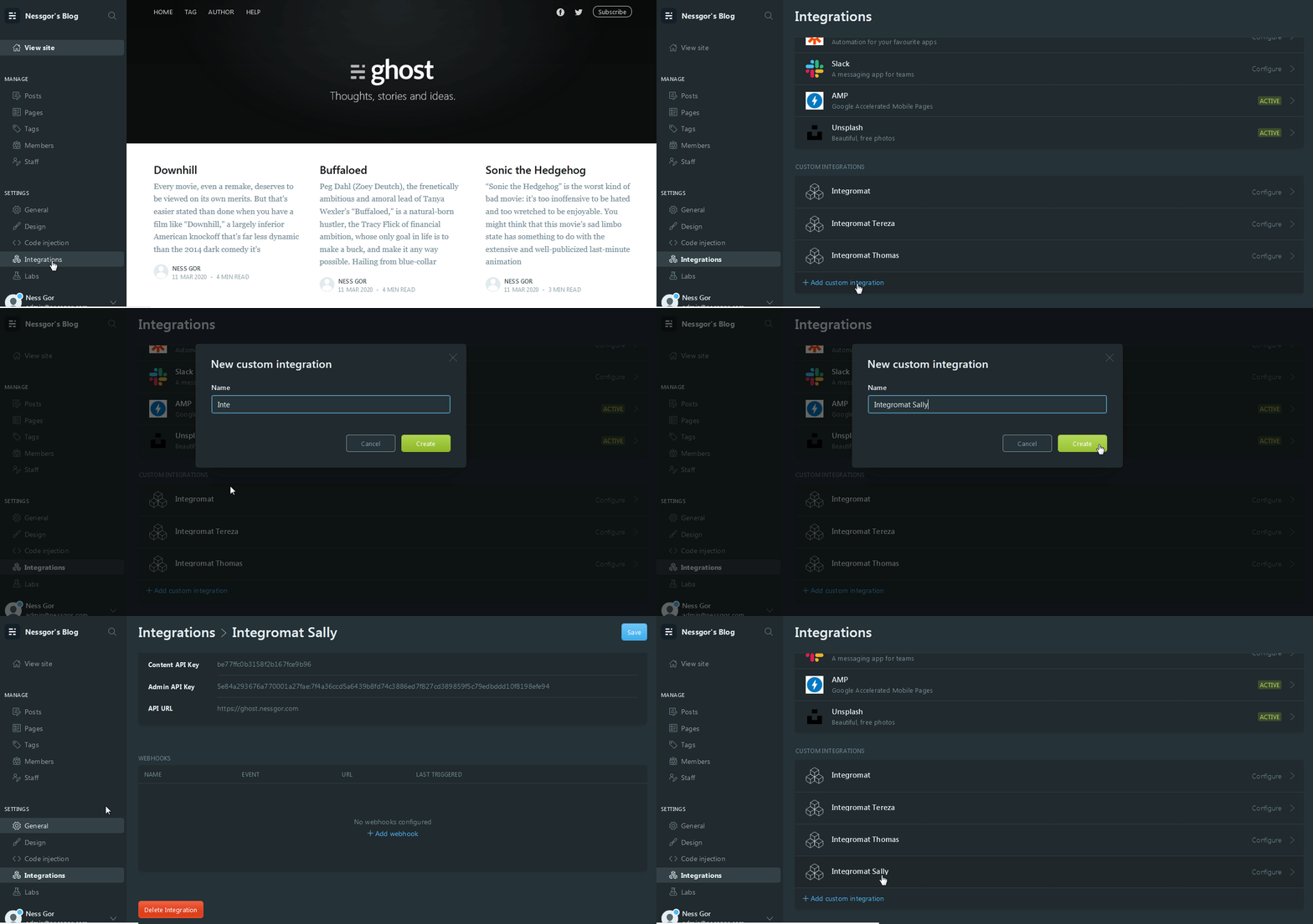
The integration is added successfully.
Legacy article, imported from the original Boost.space knowledge base (/knowledge-base/applications/website-building/ghost/).

