Medium
With Medium modules in Boost.space Integrator, you can create posts, upload images, and list publications and contributors in your Medium account.
To get started with Medium, create an account at medium.com.
Connecting Medium to Boost.space Integrator
-
Log in to your Medium account.
-
Click your avatar in the bottom-left corner, then click Settings.
-
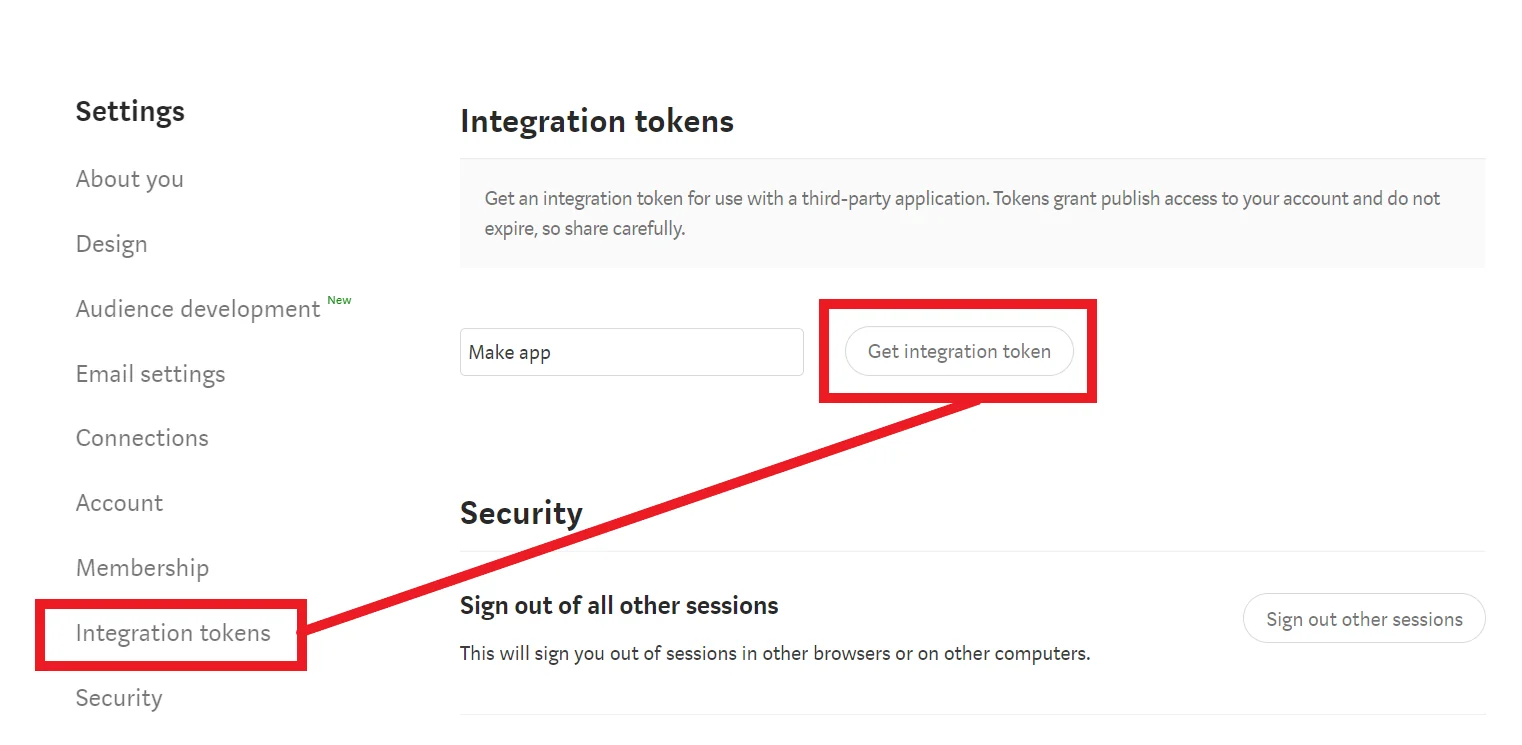
Click Integration tokens.
-
Give your token a name, then click Get integration token.
-
Copy your new integration token to your clipboard.
-
Go to your Boost.space Integrator scenario and select the Medium module you want to use.
-
Under Connection, click Add.
-
Give your new connection a name.
-
Paste your integration token in the field below.
-
Click Save.
You have successfully established the connection.
Actions
Create a Post
Creates a post on the authenticated user’s profile.
Connection
Establish a connection to your Medium account.
Title
Enter the title of the post. Note that this title is used for SEO and when rendering the post as a listing, but will not appear in the actual post – for that, the title must be specified in the content field as well.
Content Format
Enter the format of the content field. There are two valid values, html, and markdown.
Content
Enter the body of the post, in a valid, semantic, HTML fragment, or Markdown.
Canonical URL
Enter the original home of this content, if it was originally published elsewhere.
Tags
Add any tags to classify the post. Only the first three will be used. Tags longer than 25 characters will be ignored.
Publish Status
Enter the publish status of the post. Valid values are public, draft, or unlisted. The default is public.
Create a Post for Publication
Creates a post and associates it with a publication on Medium.
Connection
Establish a connection to your Medium account.
Publication ID
Enter or select the ID of the publication you want to post under.
Title
Enter the title of the post. Note that this title is used for SEO and when rendering the post as a listing, but will not appear in the actual post – for that, the title must be specified in the content field as well.
Content Format
Enter the format of the content field. There are two valid values, html, and markdown.
Content
Enter the body of the post, in a valid, semantic, HTML fragment, or Markdown.
Canonical URL
Enter the original home of this content, if it was originally published elsewhere.
Tags
Add any tags to classify the post. Only the first three will be used. Tags longer than 25 characters will be ignored.
Publish Status
Enter the publish status of the post. Valid values are public, draft, or unlisted. The default is public.
Upload an Image
Uploads an image.
Connection
Establish a connection to your Medium account.
File Name
Enter a name for the image. You must include the file extension in the file name.
File
Enter the image file.
Searches
List Publications
Returns a full list of publications that the user is related to in some way.
Connection
Establish a connection to your Medium account.
Limit
Enter the maximum number of publications Boost.space Integrator returns during one scenario execution cycle.
List Contributors
Returns a list of contributors for a given publication.
Connection
Establish a connection to your Medium account.
Publication ID
Enter or select the ID of the publication you want to list contributors for.
Limit
Enter the maximum number of contributors Boost.space Integrator returns during one scenario execution cycle.
Legacy article, imported from the original Boost.space knowledge base (/knowledge-base/applications/website-building/medium/).

