Simvoly
The Simvoly modules allow you to monitor, create, update, list, retrieve, and delete the bookings, contacts, form submissions, members, products, and orders from your Simvoly account.
Getting Started with Simvoly
Prerequisites
- A Simvoly account – create an account at simvoly.com/.
Connecting the Simvoly to Boost.space Integrator
To connect your Simvoly account to Boost.space Integrator you need to obtain the API Key from your Simvoly account and insert it in the Create a connection dialog in the Boost.space Integrator module.
1. Log in to your Simvoly account.
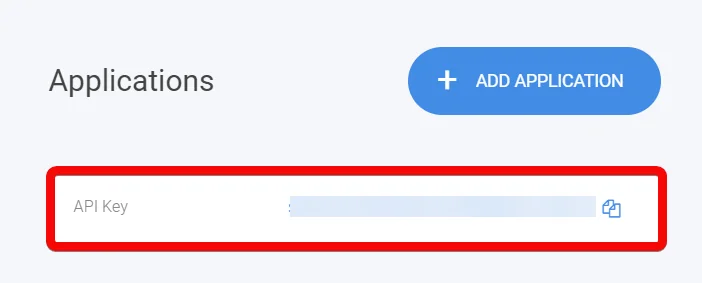
2. Click Settings > Applications.
3. Copy the API Key to your clipboard.

4. Log in to your Boost.space Integrator account and add a module from the Simvoly app into an Boost.space Integrator scenario.
5. Click Add next to the Connection field.
6. In the Connection name field, enter a name for the connection.
7. In the Domain field, enter your account URL address. For example, https://example.simvoly.com.
8. In the API Key field, enter the API key copied in step 3, and click Continue.
The connection has been established.
Contact
Boost.space Integrator automatically creates a webhook in Simvoly once you add an instant trigger to your scenario.
Watch Contact Activities
Triggers when a new contact is created or an existing contact is updated.
Webhook Name
Enter a name for the webhook.
Connection
Establish a connection to your Simvoly account.
Watch Contacts
Triggers when a new contact is created.
Connection
Establish a connection to your Simvoly account.
Limit
Set the maximum number of contacts Boost.space Integrator should return during one execution cycle.
List Contacts
Retrieves a list of contacts.
Connection
Establish a connection to your Simvoly account.
Created at Minimum
Enter (map) the date and time to list the contacts that were created on or after the specified time. See the list of supported date and time formats.
Created at Maximum
Enter (map) the date and time to list the contacts that were created on or before the specified time. See the list of supported date and time formats.
Limit
Set the maximum number of contacts Boost.space Integrator should return during one execution cycle.
Get a Contact
Retrieves an existing contact.
Connection
Establish a connection to your Simvoly account.
Contact ID
Select or map the Contact ID whose details you want to retrieve.
Create a Contact
Creates a new contact.
Connection
Establish a connection to your Simvoly account.
Enter (map) the email address of the contact.
Name
Enter (map) the contact’s name.
Phone
Enter (map) the contact’s phone number.
Note
Enter (map) the additional information about the contact.
Address
Enter (map) the street name of the contact.
City
Enter (map) the contact’s city name.
State
Enter (map) the contact’s state name.
ZIP
Enter (map) the contact’s area ZIP code.
Country
Enter (map) the contact’s country name.
Company Name
Enter (map) the contact’s company name.
Properties
Add the properties for the contact. For example, the contact's the company address.
Tags
Add the tags for the contact separated by a comma.
Update a Contact
Updates an existing contact.
Connection
Establish a connection to your Simvoly account.
Contact ID
Select or map the Contact ID whose details you want to update.
Enter (map) the email address of the contact.
Name
Enter (map) the contact’s name.
Phone
Enter (map) the contact’s phone number.
Note
Enter (map) the additional information about the contact.
Address
Enter (map) the street name of the contact.
City
Enter (map) the contact’s city name.
State
Enter (map) the contact’s state name.
ZIP
Enter (map) the contact’s area ZIP code.
Country
Enter (map) the contact’s country name.
Company Name
Enter (map) the contact’s company name.
Properties
Add the properties for the contact. For example, the contact's the company address.
Tags
Add the tags for the contact separated by a comma.
Delete a Contact
Deletes an existing contact.
Connection
Establish a connection to your Simvoly account.
Contact ID
Select or map the Contact ID you want to delete.
Members
Watch Members
Triggers when a new member is created.
Connection
Establish a connection to your Simvoly account.
Limit
Set the maximum number of members Boost.space Integrator should return during one execution cycle.
List Members
Retrieves a list of members.
Connection
Establish a connection to your Simvoly account.
Limit
Set the maximum number of members Boost.space Integrator should return during one execution cycle.
Get a Member
Retrieves an existing member.
Connection
Establish a connection to your Simvoly account.
Member ID
Select or map the Member ID whose details you want to retrieve.
Create a Member
Creates a new member.
Connection
Establish a connection to your Simvoly account.
Name
Enter (map) the name of the member.
Enter (map) the member’s email address.
Password
Enter (map) the member’s password.
Groups
Select or map the groups to which you want the member to.
Approved
Select whether the member status is approved.
Billing Address
Add the billing address of the member:
Name
Enter (map) the name of the member.
Phone
Enter (map) the member’s phone number.
VAT ID
Enter (map) the member’s VAT ID details.
Company Name
Enter (map) the company name.
Company ID
Enter (map) the member’s Company ID.
Country
Enter (map) the member’s country name.
State
Enter (map) the member’s state name.
City
Enter (map) the member’s city name.
ZIP Code
Enter (map) the member’s ZIP code details.
Address
Enter (map) the member’s street address.
Address 2
Enter (map) the member’s street address.
Shipping Address
Add the shipping address of the member:
Name
Enter (map) the name of the member.
Phone
Enter (map) the member’s phone number.
VAT ID
Enter (map) the member’s VAT ID details.
Company Name
Enter (map) the company name.
Company ID
Enter (map) the member’s Company ID.
Country
Enter (map) the member’s country name.
State
Enter (map) the member’s state name.
City
Enter (map) the member’s city name.
ZIP Code
Enter (map) the member’s ZIP code details.
Address
Enter (map) the member’s street address.
Address 2
Enter (map) the member’s street address.
Update a Member
Updates an existing member.
Connection
Establish a connection to your Simvoly account.
Member ID
Select or map the Member ID whose details you want to update.
Name
Enter (map) the name of the member.
Enter (map) the member’s email address.
Password
Enter (map) the member’s password.
Groups
Select or map the groups to which you want the member to.
Approved
Select whether the member status is approved.
Billing Address
Add the billing address of the member:
Name
Enter (map) the name of the member.
Phone
Enter (map) the member’s phone number.
VAT ID
Enter (map) the member’s VAT ID details.
Company Name
Enter (map) the company name.
Company ID
Enter (map) the member’s Company ID.
Country
Enter (map) the member’s country name 2-letter ISO 3166 code.
State
Enter (map) the member’s state name.
City
Enter (map) the member’s city name.
ZIP Code
Enter (map) the member’s ZIP code details.
Address
Enter (map) the member’s street address.
Address 2
Enter (map) the member’s street address.
Shipping Address
Add the shipping address of the member:
Name
Enter (map) the name of the member.
Phone
Enter (map) the member’s phone number.
VAT ID
Enter (map) the member’s VAT ID details.
Company Name
Enter (map) the company name.
Company ID
Enter (map) the member’s Company ID.
Country
Enter (map) the member’s country name in 2-letter ISO 3166 code.
State
Enter (map) the member’s state name.
City
Enter (map) the member’s city name.
ZIP Code
Enter (map) the member’s ZIP code details.
Address
Enter (map) the member’s street address.
Address 2
Enter (map) the member’s street address.
Delete a Member
Deletes an existing member.
Connection
Establish a connection to your Simvoly account.
Member ID
Select or map the Member ID you want to delete.
Products
Boost.space Integrator automatically creates a webhook in Simvoly once you add an instant trigger to your scenario.
Watch Product Created
Triggers when a new product is created.
Webhook Name
Enter a name for the webhook.
Connection
Establish a connection to your Simvoly account.
Watch Product Updated
Triggers when a new product is updated.
Webhook Name
Enter a name for the webhook.
Connection
Establish a connection to your Simvoly account.
Watch Products
Triggers when a new product is created.
Connection
Establish a connection to your Simvoly account.
Limit
Set the maximum number of products Boost.space Integrator should return during one execution cycle.
List Products
Retrieves a list of products.
Connection
Establish a connection to your Simvoly account.
Title
Enter (map) the product name to list the products that match the specified name.
Category ID
Enter (map) the Category ID to list the product that matches the specified product category.
Limit
Set the maximum number of products Boost.space Integrator should return during one execution cycle.
Get a Product
Retrieves an existing product.
Connection
Establish a connection to your Simvoly account.
Product ID
Select or map the Product ID whose details you want to retrieve.
Create a Product
Creates a new product.
Connection
Establish a connection to your Simvoly account.
Type
Select or map the product type:
-
Physical
-
Digital
-
Service
-
Membership
Title
Enter (map) the product name.
Variants
Add the product variant details:
Options
Add the product options. Add any details that help identify the variant.
Price
Enter (map) the price of the variant.
On Sale
Select whether the product variant is on sale.
Regular Price
Enter (map) the product’s regular price.
Quantity
Enter (map) the product available quantity for this variant. Leave this field blank empty if quantity is not tracked.
SKU
Enter (map) the product Stock Keeping Unit number.
Weight
Enter (map) the product weight.
Description
Enter (map) the product details.
URL
Enter (map) the product URL address in your store.
Hidden
Select whether the product is visible in your store.
Images
Add the image URL address of the product.
Categories
Add the product categories:
Category ID
Enter (map) the Category ID of the product.
Name
Enter (map) the category name.
URL
Enter (map) the category URL address in the store.
Parent Category
Enter (map) the Parent Category ID of this category. Enter 0 if this is the root category.
Options
Add the options for the product:
Name
Enter (map) the option. For example, color, size, material.
Values
Enter (map) the values of the options. For example, for size, it is small, medium, and large.
Advanced
Select whether different variations of the options have different prices, quantities, SKU, or weights tracked.
Subscription
Add the subscription details of the product:
Cycles
Enter (map) the number of payment cycles. Enter 0 for ongoing payments, and a positive integer for a fixed number of payments.
Period
Enter (map) the number showing the subscription period. For example, every 1 month, 2 months, 1 week, etc.
Unit
Enter the subscription validity:
-
Weekly
-
Monthly
File
Enter (map) the digital file details if the product you are selling is a digital product.
Update Existing Product by URL
Select whether if this is an existing product. If the product is existing then the details will be updated.
Update a Product
Updates an existing product.
Connection
Establish a connection to your Simvoly account.
Product ID
Select or map the Product ID whose details you want to update.
Title
Enter (map) the product name.
Variants
Add the product variant details:
Options
Add the product options. Add any details that help identify the variant.
Price
Enter (map) the price of the variant.
On Sale
Select whether the product variant is on sale.
Regular Price
Enter (map) the product’s regular price.
Quantity
Enter (map) the product available quantity for this variant. Leave this field blank empty if quantity is not tracked.
SKU
Enter (map) the product Stock Keeping Unit number.
Weight
Enter (map) the product weight.
URL
Enter (map) the product URL address in your store.
Hidden
Select whether the product is visible on your store front side.
Images
Add the image URL address of the product.
Categories
Add the product categories:
Category ID
Enter (map) the Category ID of the product.
Name
Enter (map) the category name.
URL
Enter (map) the category URL address in the store.
Parent Category
Enter (map) the Parent Category ID of this category. Enter 0 if this is the root category.
Options
Add the options for the product:
Name
Enter (map) the option. For example, color, size, material.
Values
Enter (map) the values of the options. For example, for size, it is small, medium, and large.
Advanced
Select whether different variations of the options have different prices, quantities, SKU, or weights tracked.
Subscription
Add the subscription details of the product:
Cycles
Enter (map) the number of payment cycles. Enter 0 for ongoing payments, and a positive integer for a fixed number of payments.
Period
Enter (map) the number showing the subscription period. For example, every 1 month, 2 months, 1 week, etc.
Unit
Enter the subscription validity:
-
Weekly
-
Monthly
File
Enter (map) the digital file details if the product you are selling is a digital product.
Delete a Product
Deletes an existing product.
Connection
Establish a connection to your Simvoly account.
Product ID
Select or map the Product ID you want to delete.
Orders
Boost.space Integrator automatically creates a webhook in Simvoly once you add an instant trigger to your scenario.
Watch Order Created
Triggers when a new order is created.
Webhook Name
Enter a name for the webhook.
Connection
Establish a connection to your Simvoly account.
Watch Order Updated
Triggers when a new order is updated.
Webhook Name
Enter a name for the webhook.
Connection
Establish a connection to your Simvoly account.
Watch Orders
Triggers when a new order is created.
Connection
Establish a connection to your Simvoly account.
Limit
Set the maximum number of orders Boost.space Integrator should return during one execution cycle.
List Orders
Retrieves a list of orders.
Connection
Establish a connection to your Simvoly account.
Created at Minimum
Enter (map) the date to list the orders that were created on or after the specified date.
Created at Maximum
Enter (map) the date to list the orders that were created on or before the specified date.
Limit
Set the maximum number of orders Boost.space Integrator should return during one execution cycle.
Get an Order
Retrieves an existing order.
Connection
Establish a connection to your Simvoly account.
Order ID
Select or map the Order ID whose details you want to retrieve.
Forms
Boost.space Integrator automatically creates a webhook in Simvoly once you add an instant trigger to your scenario.
Watch Submissions
Triggers when a form is submitted.
Webhook Name
Enter a name for the webhook.
Connection
Establish a connection to your Simvoly account.
Watch Form Submissions
Triggers when a form is submitted.
Connection
Establish a connection to your Simvoly account.
Limit
Set the maximum number of submissions Boost.space Integrator should return during one execution cycle.
List Form Submissions
Retrieves a list of form submissions.
Connection
Establish a connection to your Simvoly account.
From
Enter (map) the date to list the submissions that were created on or after the specified date.
To
Enter (map) the date to list the submissions that were created on or before the specified date.
Limit
Set the maximum number of submissions Boost.space Integrator should return during one execution cycle.
Bookings
Boost.space Integrator automatically creates a webhook in Simvoly once you add an instant trigger to your scenario.
Watch Booking Created
Triggers when a new booking is created.
Webhook Name
Enter a name for the webhook.
Connection
Establish a connection to your Simvoly account.
Watch Bookings
Triggers when a new booking is made.
Connection
Establish a connection to your Simvoly account.
Limit
Set the maximum number of bookings Boost.space Integrator should return during one execution cycle.
List Bookings
Retrieves a list of bookings.
Connection
Establish a connection to your Simvoly account.
From
Enter (map) the date to list the bookings that were created on or after the specified date.
To
Enter (map) the date to list the bookings that were created on or before the specified date.
Event ID
Enter (map) the Event ID whose bookings you want to watch.
Limit
Set the maximum number of bookings Boost.space Integrator should return during one execution cycle.
Other
Make an API Call
Performs an arbitrary authorized API call.
Connection
Establish a connection to your Simvoly account.
URL
Enter a path relative to https://developmentpeoly.simvoly.com For example: /api/site/member-groups
For the list of available endpoints, refer to the Simvoly API Documentation.
Method
Select the HTTP method you want to use:
GETto retrieve information for an entry**.**
POSTto create a new entry.
PUTto update/replace an existing entry.
PATCHto make a partial entry update.
DELETEto delete an entry.
Headers
Enter the desired request headers. You don’t have to add authorization headers; we already did that for you.
Query String
Enter the request query string.
Body
Enter the body content for your API call.
Example of Use – List Orders
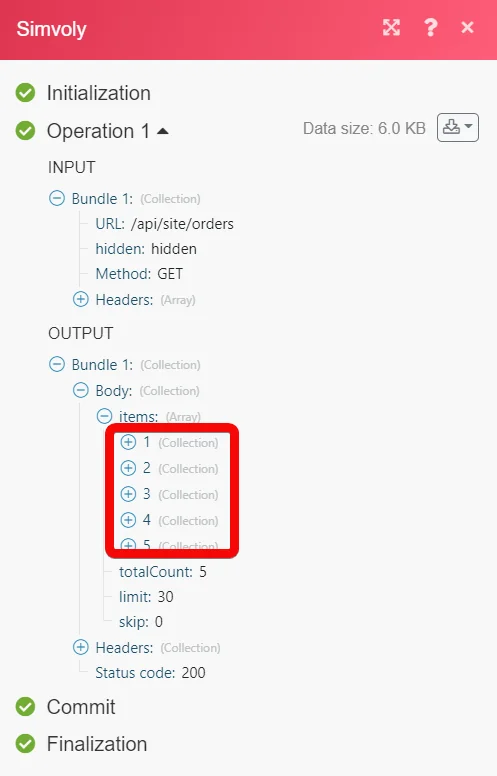
The following API call returns all the orders from your Simvoly account:
URL:/api/site/orders
Method:GET
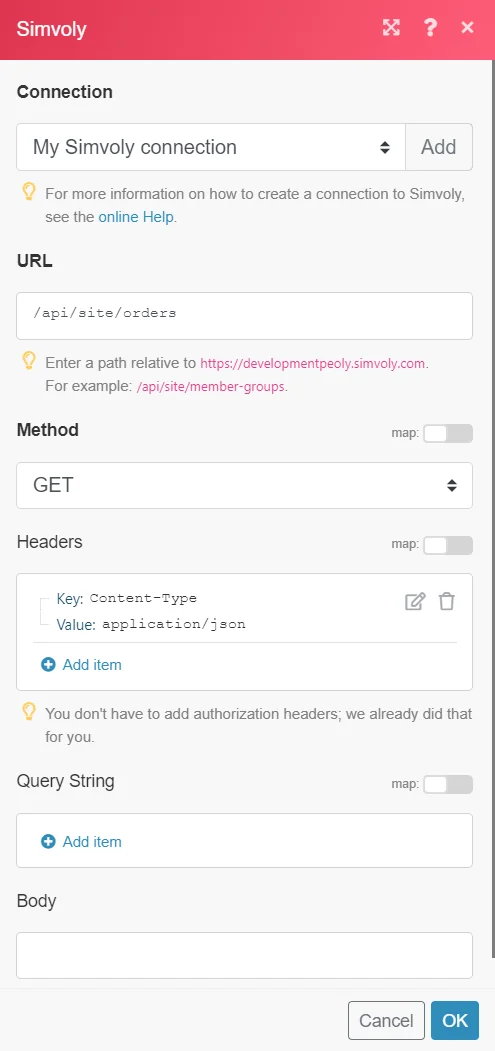
Matches of the search can be found in the module’s Output under Bundle > _Body > items._In our example, 5 orders were returned:
Legacy article, imported from the original Boost.space knowledge base (/knowledge-base/applications/website-building/simvoly2/).

