Squarespace
The Squarespace modules allow you to watch, create, update, list, retrieve, and delete the products, product variants, transactions, and orders in your Squarespace account.
Connecting Squarespace to Boost.space Integrator
1. Go to Boost.space Integrator and open the Squarespace module’s Create a connection dialog.

2. In the Connection name field, enter a name for the connection and click Continue.
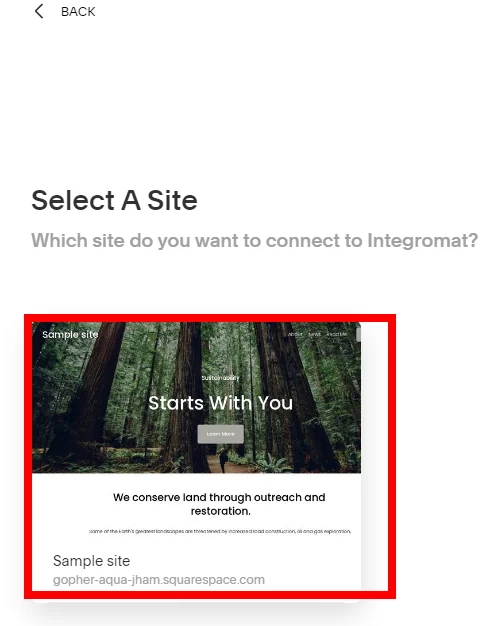
3. Enter your account login credentials, and select a site.
4. Confirm the access by clicking Allow.
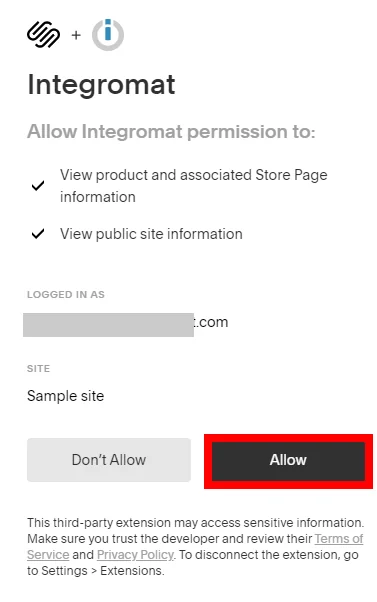
The connection has been established.
Product
Watch Products
Triggers when products are created or updated.
Required Permissions: website.products.read
Connection
Establish a connection to your Squarespace account.
Trigger Type
Select the trigger type you want to watch:
-
Product Created
-
Product Updated
Limit
Set the maximum number of products Boost.space Integrator should return during one scenario execution cycle.
List Products
Retrieves a list of products.
Required Permissions: website.products.read
Connection
Establish a connection to your Simvoly account.
Limit
Set the maximum number of products Boost.space Integrator should return during one scenario execution cycle.
Create a Product
Creates a new product.
Required Permissions: website.products
Connection
Establish a connection to your Simvoly account.
Store Page ID
Select the store in which you want to create a product.
Variants
Add the product variants:
SKU
Enter the product’s SKU number.
Value
Enter the product’s base price.
On Sale
Select the checkbox if the product is available on sale.
Quantity
Enter the number of product items available in stock.
Unlimited
Select whether the stock is unlimited.
Attributes
Add the product’s attributes and its value. For example, color, size. See Managing Attributes.
Input Weight
Select the checkbox and enter the product’s weight. The measuring unit supported is Kg or pounds based on the site setting. For example, 0.5.
Input Dimensions
Select the checkbox and enter the dimensions such as length, width, and height. The measuring unit supported are centimeters, and inches based on the site settings.
Name
Enter a name for the product.
Description
Enter the product details.
URL Slug
Enter the product’s page URL address that appears after the domain name. Maximum 100 characters are allowed.
Tags
Add the tags for the product.
Is Visible
Select whether the product is visible to all the users.
Get Products
Retrieves the details of specific products by the product IDs.
Required Permissions: website.products.read
Connection
Establish a connection to your Simvoly account.
Product ID
Select the Product ID whose details you want to retrieve.
Update a Product
Updates a product by its ID.
**Required Permissions:**website.products
Connection
Establish a connection to your Simvoly account.
Product ID
Select the Product ID whose details you want to update.
Name
Enter a name for the product.
Description
Enter the product details.
URL Slug
Enter the product’s page URL address that appears after the domain name. Maximum 100 characters are allowed.
Tags
Add the tags for the product.
Is Visible
Select whether the product is visible to all the users.
Variant Attributes
Add the variant attributes for the product. See Managing Attributes.
Title
Enter the SEO title of the product.
Description
Enter the SEO details of the product.
Delete a Product
Removes a product by its ID.
Required Permissions: website.products
Connection
Establish a connection to your Simvoly account.
Product ID
Select the Product ID you want to delete.
Upload a Product Image
Upload an image for a product by the product ID.
Required Permissions: website.products
Connection
Establish a connection to your Simvoly account.
Product ID
Select the Product ID whose product image you want to upload.
File Name
Enter the image file name including the file extension. For example, sample.png.
Data
Enter or map the file data.
Update a Product Image
Update the alternate text of a product image by its ID. Throws error if the product image upload has not been completed.
Required Permissions: website.products
Connection
Establish a connection to your Simvoly account.
Product ID
Select the Product ID whose product image you want to update.
Product Image ID
Select the product Image ID you want to update.
Alt Text
Enter the image description. See Best Practices for providing image descriptions.
Delete a Product Image
Removes a product image by its ID. Throws error if the product image upload has not been completed.
Required Permissions: website.products
Connection
Establish a connection to your Simvoly account.
Product ID
Select the Product ID whose product image you want to delete.
Product Image ID
Select the product Image ID you want to delete.
Product Variant
List Product Variants
Retrieves a list of product variants.
Required Permissions: website.products.read
Connection
Establish a connection to your Squarespace account.
Product ID
Select the Product ID whose product variants you want to list.
Limit
Set the maximum number of product variants Boost.space Integrator should return during one scenario execution cycle.
Create a Product Variant
Creates a new product variant by the product ID.
Required Permissions: website.products
Connection
Establish a connection to your Squarespace account.
Product ID
Enter the Product ID for which you want to create the variant.
SKU
Enter the product’s SKU number.
Value
Enter the product’s base price.
On Sale
Select the checkbox if the product is available on sale.
Quantity
Enter the number of product items available in stock.
Unlimited
Select whether the stock is unlimited.
Attributes
Add the product’s attributes and its value. For example, color, size. See Managing Attributes.
Input Weight
Select the checkbox and enter the product’s weight. The measuring unit supported is Kg or pounds based on the site setting. For example, 0.5.
Input Dimensions
Select the checkbox and enter the dimensions such as length, width, and height. The measuring unit supported are centimeters, and inches based on the site settings.
Update a Product Variant
Updates a product variant by its ID.
**Required Permissions:**website.products
Connection
Establish a connection to your Squarespace account.
Product ID
Enter the Product ID variant you want to update.
Product Variant Update
Select the product variant whose details you want to update.
SKU
Enter the product’s SKU number.
Value
Enter the product’s base price.
On Sale
Select the checkbox if the product is available on sale.
Quantity
Enter the number of product items available in stock.
Unlimited
Select whether the stock is unlimited.
Attributes
Add the product’s attributes and its value. For example, color, size. See Managing Attributes.
Modify Weight
Select the checkbox and enter the product’s weight. The measuring unit supported is Kg or pounds based on the site setting. For example, 0.5.
Modify Dimensions
Select the checkbox and enter the dimensions such as length, width, and height. The measuring unit supported are centimeters, and inches based on the site settings.
Delete a Product Variant
Removes a product variant by its ID.
**Required Permissions:**website.products
Connection
Establish a connection to your Squarespace account.
Product ID
Enter the Product ID whose variant you want to delete.
Product Variant ID
Select the Product Variant ID you want to delete.
Assign a Product Image
Assigns a product image to a product variant by its ID. Throws error if the product image upload has not been completed.
Required Permissions: website.products
Connection
Establish a connection to your Squarespace account.
Product ID
Enter the Product ID to whose variant you want to assign a product image.
Product Variant
Select the product variant to which you want to assign a product image.
Product Image ID
Select the Product Image ID you want to assign to the product variant.
Inventory
List Inventories
Retrieves a list of inventories.
Required Permissions: website.products.read
Connection
Establish a connection to your Simvoly account.
Limit
Set the maximum number of Inventories Boost.space Integrator should return during one scenario execution cycle.
Get Inventories
Retrieves a list of specific inventories by the product variant IDs.
Required Permissions: website.inventory.read, website.products.read
Connection
Establish a connection to your Simvoly account.
Product Variant IDs
Add the Product Variant IDs whose details you want to retrieve. You can add multiple variants up to 50.
Update Stock Quantities
Updates stock quantities by the product variant ID.
**Required Permissions:**website.inventory, website.products.read
Connection
Establish a connection to your Simvoly account.
Increase Stock
Add the variants whose stock you want to increase:
Product Variant ID
Enter the product variant ID whose stock you want to increase or search to select.
Quantity
Enter the number by which you want to increase the variant stock.
Decrease Stock
Add the variants whose stock you want to decrease:
Product Variant ID
Enter the product variant ID whose stock you want to decrease or search to select.
Quantity
Enter the number by which you want to decrease from the current variant’s stock.
Set Stock to Finite
Add the variants whose stock you want to limit:
Product Variant ID
Enter the product variant ID whose stock you want to set finite.
Quantity
Enter a new quantity for the variant.
Set Stock to Unlimited Operations
Add the variants whose stock you want to be set as unlimited:
Product Variant ID
Enter the product variant ID whose stock you want to set as unlimited.
Orders
Watch Orders
Triggers when orders are created or updated.
Required Permissions: website.orders.read
Connection
Establish a connection to your Simvoly account.
Trigger Type
Select the trigger type you want to watch:
-
Order Created
-
Order Updated
Fulfillment Status
Select the status of the order you want to watch:
-
Pending
-
Fulfilled
-
Canceled
Limit
Set the maximum number of orders Boost.space Integrator should return during one scenario execution cycle.
List Orders
Retrieves a list of orders.
Required Permissions: website.orders.read
Connection
Establish a connection to your Simvoly account.
Fulfillment Status
Select the status of the order you want to watch:
-
Pending
-
Fulfilled
-
Canceled
Limit
Set the maximum number of orders Boost.space Integrator should return during one scenario execution cycle.
Create an Order
Creates a new order.
Required Permissions: website.orders, website.products.read
Connection
Establish a connection to your Simvoly account.
Created On
Enter the date and time when the order is created.
Channel Name
Enter the external third party sales channel name.
External Order Reference
Enter the order reference number used by the third-party sales channel.
Inventory Behavior
Select whether to keep or deduct the inventory stock:
-
Keep
-
Deduct
Price Tax Interpretation
Select whether the tax is included in the item price:
-
Exclusive
-
Inclusive
If selected inclusive, indicates the line item price includes the tax.
Input a Shipping Address
Select the checkbox to add the shipping address:
First Name
Enter the contact’s first name for the shipping address.
Last Name
Enter the contact’s last name for the shipping address.
Address 1
Enter the street name.
Address 2
Enter the street name.
City
Enter the city name.
State
Enter the state name
Country Code
Enter the two-character country code. For example, US, CZ.
Postal Code
Enter the area postal code.
Phone
Enter the phone number to contact.
Input a Billing Address
Select the checkbox to add the billing address:
First Name
Enter the contact’s first name for the billing address.
Last Name
Enter the contact’s last name for the billing address.
Address 1
Enter the street name.
Address 2
Enter the street name.
City
Enter the city name.
State
Enter the state name
Country Code
Enter the two-character country code. For example, US, CZ.
Postal Code
Enter the area postal code.
Phone
Enter the phone number to contact.
Line Items
Add the line items:
Line Item Type
Select the line item type:
-
Physical Product
-
Custom
Title
Enter a name for the item.
Quantity
Enter the number of items.
Product Variant ID
Enter the Product Variant ID or search to select.
Unit Price Paid
Enter the price paid per unit by the customer.
Non Sale Unit Price
Enter the full unit price of the item when it is not on sale or on discount. The value must be greater than or equal to the unit price paid.
Shipping Lines
Add the shipping line items:
Method
Enter the shipping option for the order. Only one shipping method is allowed. If the third-party contains multiple options, combine them into one.
Amount
Enter the shipping amount with currency. The supported currency is based on the site’s store settings. If the store supports USD, you must the amount applicable in USD.
Discount Lines
Add the discount lines:Promo Code
Enter the discount promotion code.
Name
Enter the discount name.
Amount
Enter the discount amount.
Customer Email
Enter the customer’s email address for whom the order is.
Send Fulfillment Notification Email to Customer
Select whether to send the notification to the customer’s email address about the order fulfillment.
Fulfillment Status
Select the fulfillment status of the order:
-
Pending
-
Fulfilled
Fulfillments
Add the fulfillment details:
Ship Date
Enter the date and time when the order is fulfilled. For example, 2020-12-29T22:19:26.980Z.
Carrier Name
Enter the details of the carrier handling the order. For example, FedEx.
Service
Enter the carrier level of service for shipping. For example, Same-Day Delivery.
Tracking Number
Enter the order tracking number. For example, ABC123.
Tracking URL
Enter the order’s tracking link URL address.
Get an Order
Retrieves the details of an order by its ID.
**Required Permissions:**website.orders.read
Connection
Establish a connection to your Simvoly account.
Order ID
Select the Order ID whose details you want to retrieve.
Fulfill an Order
Fulfills an order by its ID. Additional shipments can be added to an order event if its status is fulfilled.
Required Permissions: website.orders
Connection
Establish a connection to your Simvoly account.
Order ID
Select the Order ID you want to fulfill.
Send Notification to Customer
Select the checkbox to send notifications to customers about the order fulfillment.
Shipments
Add order’s shipments:
Ship Date
Enter the date and time when the order is fulfilled. For example, 2020-12-29T22:19:26.980Z.
Carrier Name
Enter the details of the carrier handling the order. For example, FedEx.
Service
Enter the carrier level of service for shipping. For example, Same-Day Delivery.
Tracking Number
Enter the order tracking number. For example, ABC123.
Tracking URL
Enter the order’s tracking link URL address.
Transaction
Watch Transaction
Triggers when transactions are created or updated.
**Required Permissions:**website.transactions.read
Connection
Establish a connection to your Squarespace account.
Trigger Type
Select the trigger type you want to watch:
-
Order Created
-
Order Updated
Limit
Set the maximum number of transactions Boost.space Integrator should return during one scenario execution cycle.
List Transaction
Retrieves a list of transactions.
Required Permissions: website.transactions.read
Connection
Establish a connection to your Squarespace account.
Limit
Set the maximum number of transactions Boost.space Integrator should return during one scenario execution cycle.
Get Transaction
Retrieves the details of specific transactions by the transaction IDs.
Required Permissions: website.transactions.read
Connection
Establish a connection to your Squarespace account.
Transaction ID
Add the Transaction IDs whose details you want to retrieve.
Other
Make an API Call
Performs an arbitrary authorized API call.
Required Permissions: website.orders.read, website.orders, website.transactions.read, website.inventory.read, website.inventory, website.products.read, website.products
Connection
Establish a connection to your Simvoly account.
URL
Enter a path relative to https://api.squarespace.com/. For example: /1.0/commerce/products
For the list of available endpoints, refer to the Squarespace API Documentation.
Method
Select the HTTP method you want to use:
GET to retrieve information for an entry.
POST to create a new entry.
PUT to update/replace an existing entry.
PATCH to make a partial entry update.
DELETE to delete an entry.
Headers
Enter the desired request headers. You don’t have to add authorization headers; we already did that for you.
Query String
Enter the request query string.
Body
Enter the body content for your API call.
Example of Use – List Orders
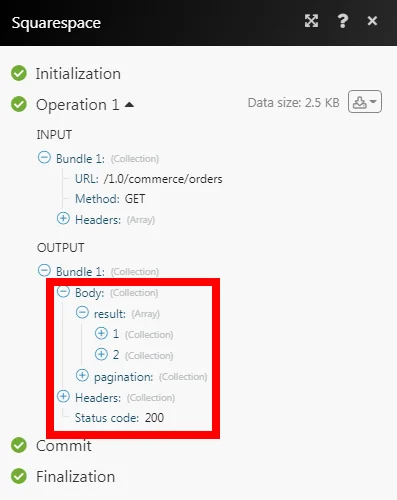
The following API call returns all the orders from your Squarespace account:
URL:/1.0/commerce/orders
Method:GET
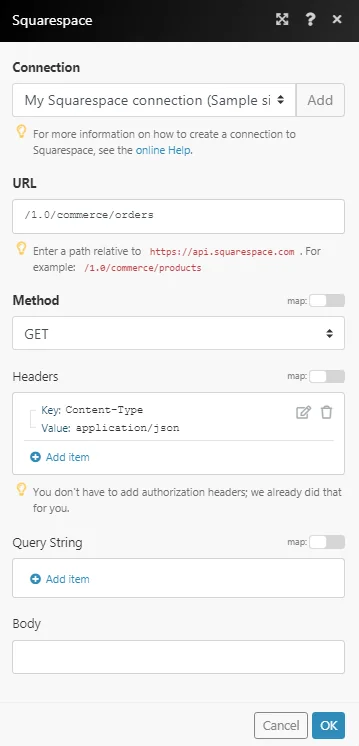
Matches of the search can be found in the module’s Output under Bundle > _Body > result._In our example, 2 orders were returned:
Legacy article, imported from the original Boost.space knowledge base (/knowledge-base/applications/website-building/squarespace/).

