How to create a stock issue in Boost.space?
Creating a Stock Issue in Boost.space: Step-by-Step Guide
In this article, you will find a step-by-step guide helping you how to accomplish a mass import of records into a stock issue.
Import template – Stock issue
1. In order to create a stock issue, a stock card and a stock item must exist.
2. Create a spreadsheet (Excel, Google Sheet). Fill in the first row according to the attached photo. In order to correctly create the dispensing sheet, you must fill in the stock card.
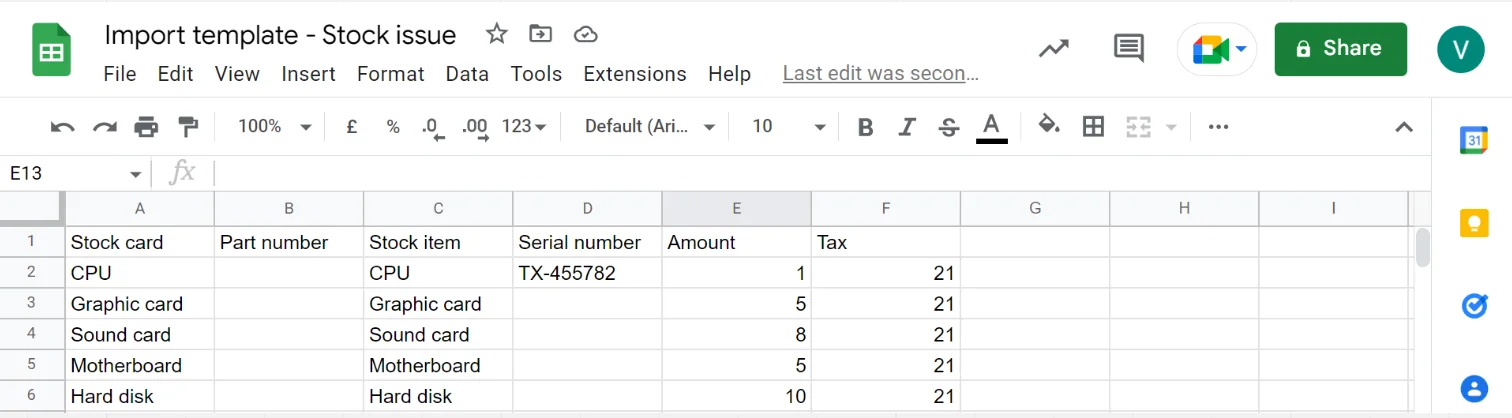
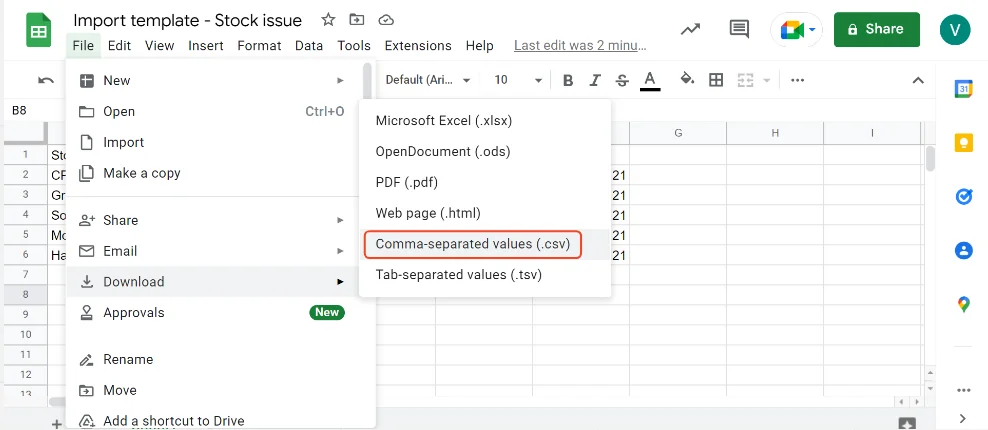
3. After creating the spreadsheet, download the file in “.csv format”.
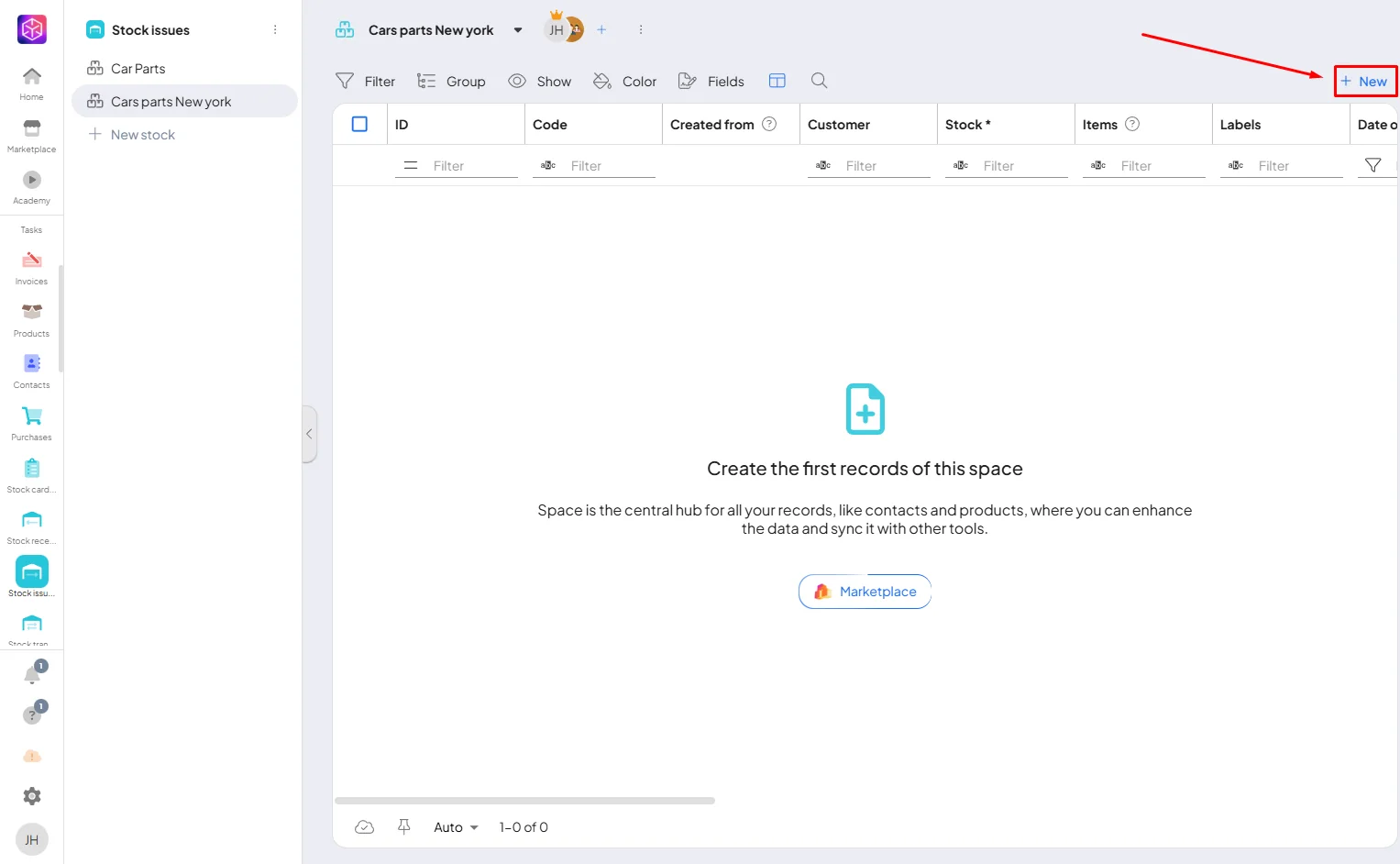
4. In the Boost.space – open the Stock issues addon, and click on “+ New”.
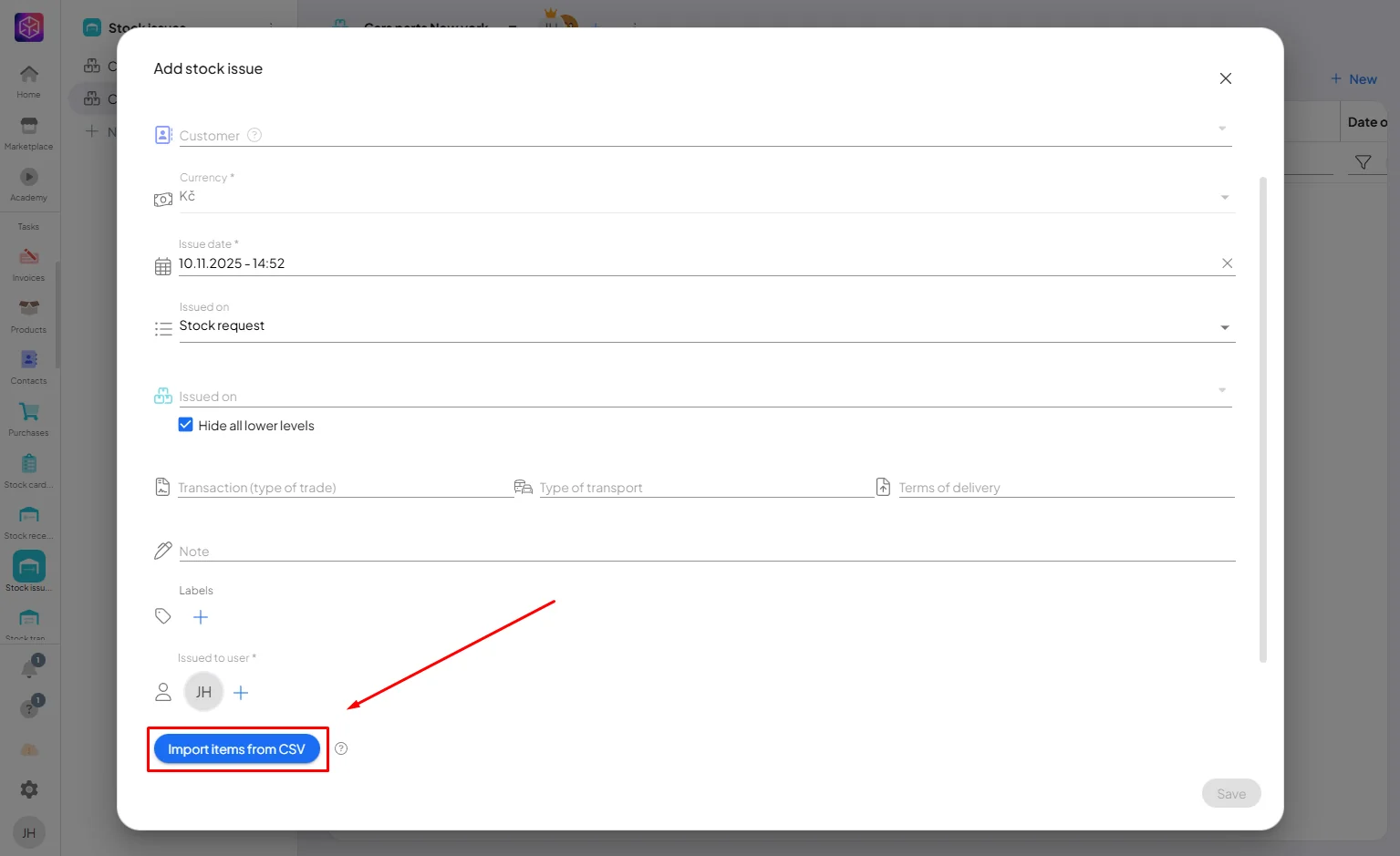
5. Fill in the necessary information and upload your .csv file by clicking on “Import items from CSV”.
6. The import of the items has been done. To create it, click on “save”.
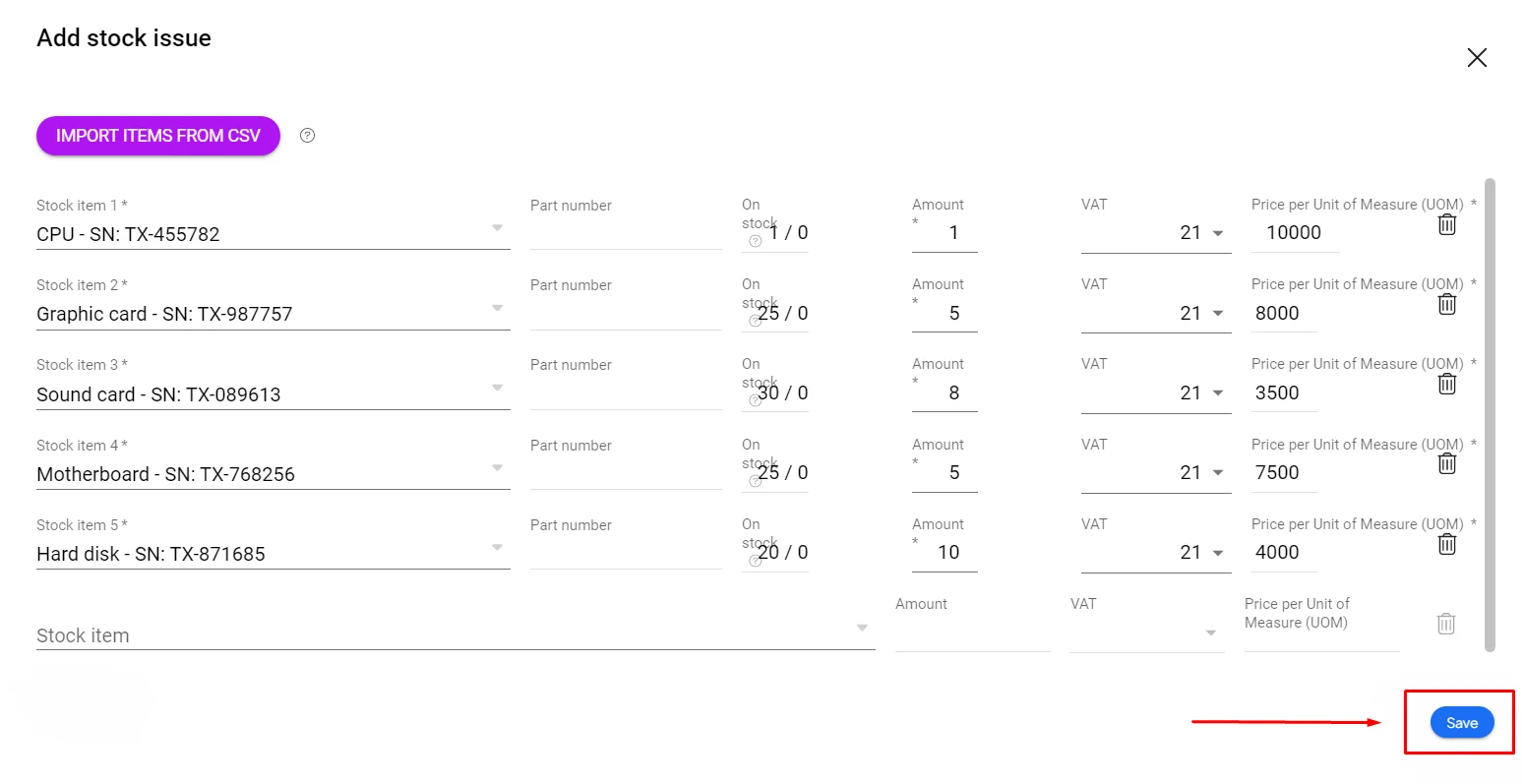
Creating a stock issue in Boost.space is a simple process that ensures accurate inventory management. By preparing a correct CSV file and importing it into the Stock Issues module, you can quickly and efficiently record item movements and maintain up-to-date stock records.
If you need help with anything, please contact us at support@boost.space.

