Help Scout
Getting Started with Help Scout
The Help Scout modules allow you to monitor, create, list, and delete conversations, threads, mailboxes, customers, customer addresses, chat handles, customer emails, phones, social profiles, websites and other elements in your Help Scout account.
Prerequisites
- A Help Scout account
In order to use Help Scout with Boost.space Integrator, it is necessary to have a Help Scout account. If you do not have one, you can create a Help Scout account at secure.helpscout.net/members/register/30/.
The module dialog fields that are displayed in bold (in the Boost.space Integrator scenario, not in this documentation article) are mandatory!
Connect Help Scout to Boost.space Integrator
To connect your Help Scout account to Boost.space Integrator follow the general instructions for Connecting to services.
After you click the Continue button, Boost.space Integrator will redirect you to the Help Scout website where you will be prompted to grant Boost.space Integrator access to your account.
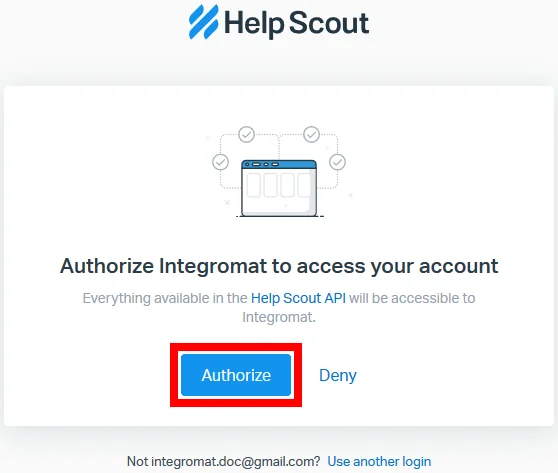
Confirm the dialog by clicking the Authorize button.
Conversations
Watch Conversations
Triggers when there is a conversation event.
Webhook name
Enter a name for the webhook. E.g. Conversation created.
Connection
Establish a connection to your Help Scout account.
Event
Select one or more events that trigger this module.
Possible events:
Agent reply created, conversation assigned, conversation created, customer reply created, conversation deleted, conversation merged, conversation moved, conversation note created, conversation status changed, conversation tag changed.
Create a Conversation
Creates a conversation in a mailbox with at least one thread.
Connection
Establish a connection to your Help Scout account.
Type
Select the conversation type.
Mailbox ID
Select or map the ID of the mailbox you want to send the message from.
Custom Field
Allows you to add custom fields and custom field values.
Subject
Enter the conversation’s subject.
Status
Set the status of the new conversation.
In Help Scout, there are three values for conversation status:
Active conversations indicate the conversation needs attention. New conversations are automatically set as Active when they arrive in your mailbox.
Pending conversations are waiting on something. Set a conversation to_Pending_ if you’re waiting to hear back from a customer, or you just need time to gather more information.
Closed conversations are solved conversations. Set the status to Closed when you’re finished working with the customer, and you consider the case to be resolved.
Threads
Add at least one thread to the conversation.
It is not allowed to create a conversation with just note threads.
Customer
Select a customer associated with the conversation.
Specify a customer by customer ID or email.
If a customer with the inputted email does not exist, a new one will be created, using the provided email.
Tags
Enter the tags to be be added to the conversation.
Assign To
Select the Help Scout user assigned to the conversation.
Select User
Select the user who is adding the conversation and threads. The Boost.space Integrator authorized user is used when no user is selected.
Closed At
Set when the conversation was closed. Supported date formats.
Auto reply
When the Yes option is selected, an auto reply will be sent as long as there is at least one customer thread in the conversation.
Imported
This option enables a conversation to be created for historical purposes (i.e. if moving from a different platform, you can import your history). When the option is enabled, no outgoing emails or notifications will be generated.
List Conversations
Lists and filters conversations.
Connection
Establish a connection to your Help Scout account.
Mailbox ID
Retrieves conversations from a specified mailbox.
Folder ID
Select or map the folder to filter conversations from.
Number
Retrieves conversations by the number.
Status
Filters conversations by status.
Active conversations indicate the conversation needs attention. New conversations are automatically set as Active when they arrive in your mailbox.
Pending conversations are waiting on something. Set a conversation to_Pending_ if you’re waiting to hear back from a customer, or you just need time to gather more information.
Closed conversations are solved conversations. Set the status to Closed when you’re finished working with the customer, and you consider the case to be resolved.
Tag
Filter conversation by tags. Use comma-separated values for more tags.
Modified Since
Filters conversations modified after this date and time (ISO 8601). Supported date formats.
Sort Field
Select the field you want to sort results by.
Sort Order
Select ascending or descending sort order. Default is descending.
Limit
Set the maximum number of results Boost.space Integrator will return during one execution cycle.
Get a Conversation
Retrieves details about a specified conversation.
Connection
Establish a connection to your Help Scout account.
Conversation ID
Select or map the conversation you want to retrieve details about.
Delete a Conversation
Deletes a selected conversation.
Connection
Establish a connection to your Help Scout account.
Conversation ID
Select or map the conversation you want to delete.
Update a Conversation
Allows you to change several key conversation fields.
Connection
Establish a connection to your Help Scout account.
Conversation ID
Select or map the conversation you want to modify.
Patch Operation
Select the type of update operation you want to do.
Path
Select the object you want to update.
Possible update options:
Functionality
Path value
Op value
Change subject
/subject
replace
Change customer
/primaryCustomer.id
replace
Publish draft
/draft
replace
Move conversation to another mailbox
/mailboxId
move
Change conversation status
/status
replace
Change conversation owner
/assignTo
replace
Un-assign conversation
/assignTo
remove
Thread
Create Thread
Allows you to create a chat thread, customer thread, phone thread, reply thread, or note.
Connection
Establish a connection to your Help Scout account.
Conversation ID
Select or map the conversation you want to modify.
Select type
Select the type of thread that is to be created.
Customer
Existing Customer – Select or map the customer to start a thread with.
New Customer – Enter the new customer’s details.
Cc
Add the email address you want to send the copy to. Available only for customer and reply types.
Bcc
Add the email address you want to sent the blind copy to. Available only for customer and reply types.
Draft
If this option is enabled, a draft reply is created.
Conversation Text
Enter the text content of the conversation.
Imported
This option enables a conversation to be created for historical purposes(i.e. if moving from a different platform, you can import your history). When the option is enabled, no outgoing emails or notifications will be generated.
Attachments
Source file – Map the attachment file from the previous module (e.g. Dropbox > Get a File) or enter the file name and file data manually.
Mime Type – Enter the media type of the attachment. E.g. image/png
List Threads
Retrieves all threads (sorted from newest to oldest).
Connection
Establish a connection to your Help Scout account.
Conversation ID
Select or map the conversation you want to list threads from.
Limit
Set the maximum number of threads Boost.space Integrator will return during one execution cycle.
Update Thread
Allows you to change the text in a conversation.
Connection
Establish a connection to your Help Scout account.
Conversation ID
Select or map the conversation you want to modify.
Thread ID
Select or map the thread you want to update.
Update Conversation Text
Enter a new text for the thread.
Mailbox
List Mailboxes
Returns all mailboxes in your Help Scout account.
Connection
Establish a connection to your Help Scout account.
Limit
Set the maximum number of mailboxes Boost.space Integrator will return during one execution cycle.
Get Mailbox
Retrieves information about a selected mailbox.
Connection
Establish a connection to your Help Scout account.
Mailbox ID
Select the mailbox you want to retrieve information about.
List Mailbox Folders
Returns all folders within the selected mailbox.
Connection
Establish a connection to your Help Scout account.
Mailbox ID
Select the mailbox you want to get folders from.
Limit
Set the maximum number of folders Boost.space Integrator will return during one execution cycle.
Customer
Watch Customers
Triggers when a new customer is created and returns the customer’s details.
Webhook name
Enter a name for the webhook. E.g. New Customer.
Connection
Establish a connection to your Help Scout account.
List Customers
Retrieves all customers by defined filters.
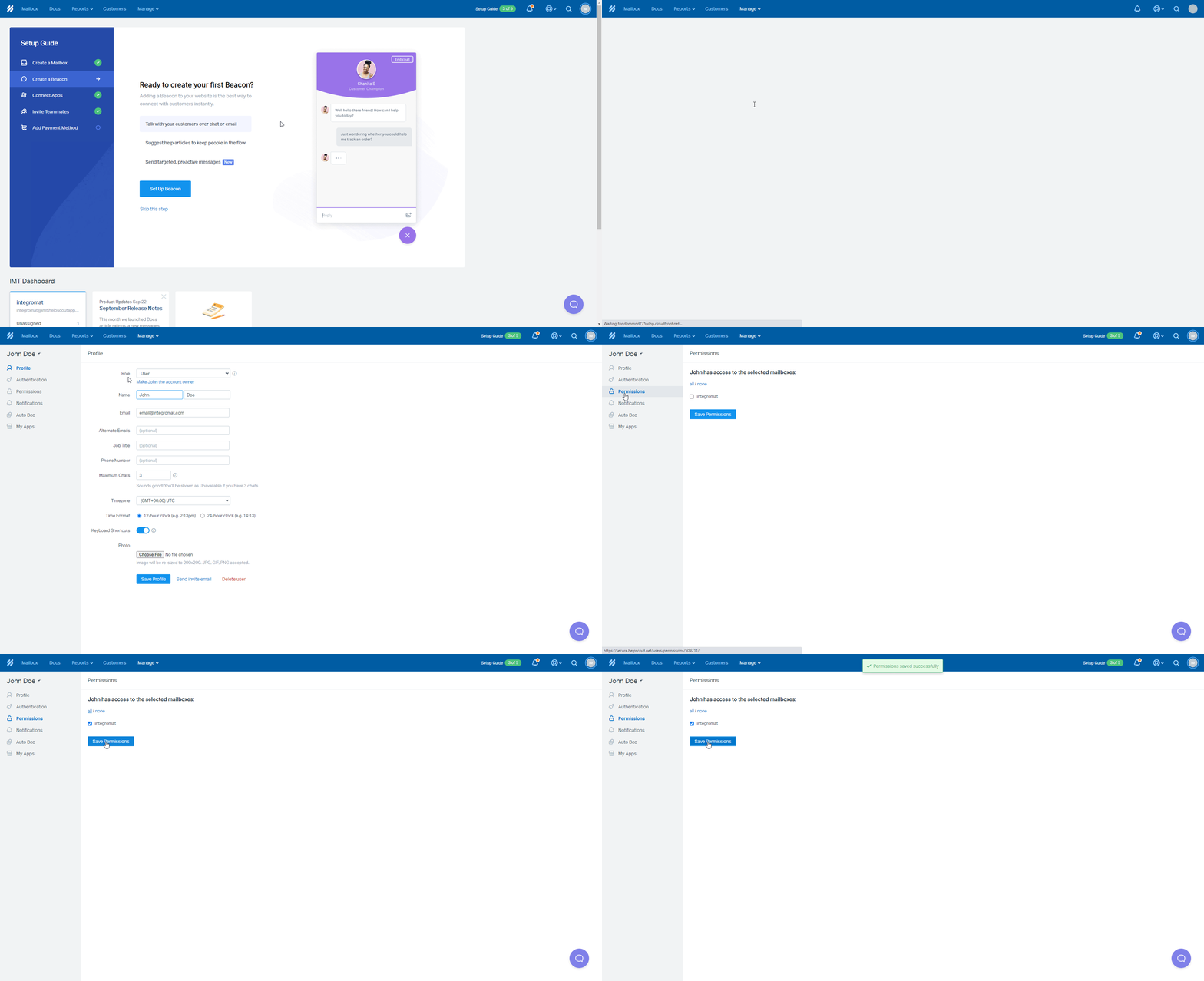
If there are some customers missing in the module’s output, make sure that the authenticated Help Scout users have access to all Mailboxes within your Help Scout account.Go to Manage > Users > {Authenticated User} > _Permissions_and enable access to all Mailboxes.
Connection
Establish a connection to your Help Scout account.
Filter Mailbox or Not
Select the Yes option to filter customers from a specific mailbox.
Mailbox ID
Select the mailbox you want to filter customers from.
Last Name
Select the last name of the customer you want to filter the results by.
Modified Since
Returns only customers that were modified after this date. Supported date formats.
Sort Fields
Select the field to sort the results by.
Sort Order
Select ascending or descending sort order. Default is descending.
Limit
Set the maximum number of customers Boost.space Integrator will return during one execution cycle.
Get a Customer
Retrieves customer details.
Connection
Establish a connection to your Help Scout account.
Customer ID
Select the customer you want to retrieve details about.
Create a Customer
Creates a new customer.
Connection
Establish a connection to your Help Scout account.
First Name
First name of the customer. Must be between 1 and 40 characters.
Last Name
Last name of the customer. Must be between 1 and 40 characters.
Emails
Enter the customer’s email addresses.
Phones
Enter the customer’s phone number
Social Profiles
Enter the customer’s social network profile URLs.
Address
Enter the customer’s address.
Websites
Enter the customer’s website URL.
Age
Enter the customer’s age.
Gender
Enter the customer’s gender
Job Title
Enter the customer’s job title.
Company or Organization
Enter the customer’s company.
Location
Enter the location of the customer.
Background
This is the Notes field from the Help Scout user interface.
Photo URL
Enter the customer’s photo URL. E.g.https://api.helpscout.net/img/some-avatar.jpg
Photo Type
Type of photo.
Update a Customer
Allows you to change a customer’s details.
Connection
Establish a connection to your Help Scout account.
Customer ID
Select or map the ID of the customer whose details you want to update.
Please find field descriptions in the section, Create Customer above.
Address
Create and Update Address
Creates a new address or updates the existing address of the customer.
Connection
Establish a connection to your Help Scout account.
Customer ID
Select the customer whose address you want to update.
City
Enter the customer’s city.
State
Enter the customer’s state.
Postal Code
Enter the customer’s postal code.
Country
Enter the customer’s country code. E.g. US.
Lines
Add additional address lines.
Get Address
Retrieves the address of the customer.
Connection
Establish a connection to your Help Scout account.
Customer ID
Select the customer whose address you want to retrieve.
Delete Address
Deletes the address of the customer.
Connection
Establish a connection to your Help Scout account.
Customer ID
Select or map the customer whose address you want to delete.
Customer Chat Handle
Create Chat Handle
Creates a chat handle for the existing customer.
Connection
Establish a connection to your Help Scout account.
Customer ID
Select or map the customer you want to create a chat handle for.
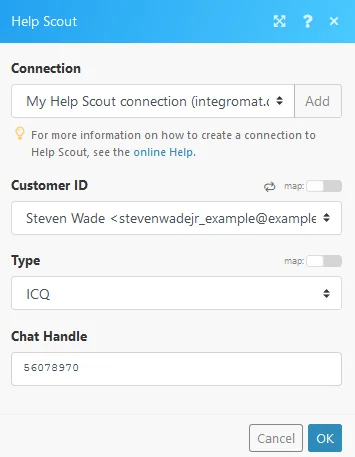
Type
Select the type of the chat handle.
Chat Handle
Enter the chat handle (chat username).
Update Chat Handle
Updates an existing customer’s chat handle.
Connection
Establish a connection to your Help Scout account.
Customer ID
Select or map the customer whose handle you want to update.
Type
Select the type of the chat handle.
Chat Handle
Enter the chat handle (chat username).
Delete Chat Handle
Deletes the desired customer’s chat handle.
Connection
Establish a connection to your Help Scout account.
Customer ID
Select or map the customer whose handle you want to delete.
Chat Handle
Enter the chat handle (chat username) you want to delete.
Customer Email
Create an Email
Adds an email for the customer.
Connection
Establish a connection to your Help Scout account.
Customer ID
Select or map the customer you want to create a new email for.
Type
Select the type of the email.
Enter the customer’s email address.
List Emails
Retrieves all of the customer’s email addresses.
Connection
Establish a connection to your Help Scout account.
Customer ID
Select or map the customer whose email addresses you want to retrieve.
Limit
Set the maximum number of emails Boost.space Integrator will return during one execution cycle.
Update an Email
Updates a customer’s email address.
Connection
Establish a connection to your Help Scout account.
Customer ID
Select or map the customer you want to create a new email for.
New Type
Select the new type of the email.
New Email
Enter the customer’s new email address.
Delete an Email
Deletes a customer’s email address.
Connection
Establish a connection to your Help Scout account.
Customer ID
Select or map the customer whose email address you want to delete.
Email ID
Enter the email address you want to delete.
Customer Phone
Create Phone
Adds a phone number to the customer.
Connection
Establish a connection to your Help Scout account.
Customer ID
Select or map the customer you want to create a new phone number for.
Type
Select the type of phone number.
Telephone Number
Enter the customer’s phone number.
Delete Phone
Deletes a customer’s phone number.
Connection
Establish a connection to your Help Scout account.
Customer ID
Select or map the customer whose phone number you want to delete.
Phone ID
Enter (map) the customer’s phone ID you want to delete.
Update Phone
Updates a customer’s phone number.
Connection
Establish a connection to your Help Scout account.
Customer ID
Select or map the customer whose phone number you want to update.
Phone ID
Select the phone number or map the ID of the phone you want to update.
Type
Select the new type of phone number.
Telephone number
Enter the customer’s new phone number.
Social Profile
Create a Social Profile
Creates a new social profile of the existing customer.
Connection
Establish a connection to your Help Scout account.
Customer ID
Select or map the customer whose social profile you want to add.
Type
Select the type of social profile.
Social Profile URL
Enter the URL of the customer’s social profile. E.g. https://www.facebook.com/make.lover
Update a Social Profile
Updates a customer’s social profile
Connection
Establish a connection to your Help Scout account.
Customer ID
Select or map the customer whose social profile you want to update.
Type
Select the new type of social profile.
Social Profile URL
Enter the customer’s new social profile URL.
Delete Social Profile
Deletes a customer’s social profile information.
Connection
Establish a connection to your Help Scout account.
Customer ID
Select or map the customer whose social profile you want to delete.
Social Profile ID
Enter (map) the customer’s social profile ID you want to remove from the user details.
Website
Create a Website
Creates a new website for an existing customer.
Connection
Establish a connection to your Help Scout account.
Customer ID
Select or map the customer you want to create a new website for.
Website URL
Enter the URL of the customer’s website.
Update a Website
Updates a website of a customer.
Connection
Establish a connection to your Help Scout account.
Customer ID
Select or map the customer you whose website information you want to update.
Website URL
Enter the new URL of the customer’s website.
Delete a Website
Deletes a website of a customer.
Connection
Establish a connection to your Help Scout account.
Customer ID
Select or map the customer you whose website information you want to delete.
Website ID
Enter (map) the customer’s website ID you want to remove from the user details.
Other
Watch Satisfaction Rating
Triggers when a satisfaction rating is received.
Webhook name
Enter a name for the webhook. E.g. New Rating.
Connection
Establish a connection to your Help Scout account.
List Tags
Retrieves a list of all tags used in your Help Scout account.
Connection
Establish a connection to your Help Scout account.
Limit
Set the maximum number of tags Boost.space Integrator will return during one execution cycle.
Make an API Call
Allows you to perform a custom API call.
Connection
Establish a connection to your Help Scout account.
URL
Enter a path relative to https://api.helpscout.net/v2/
For the list of available endpoints, refer to the Help Scout Mailbox API 2.0 documentation.
Method
Select the HTTP method you want to use:
GET to retrieve information for an entry.
POST to create a new entry.
PUT to update/replace an existing entry.
PATCH to make a partial entry update.
DELETE to delete an entry.
Headers
Enter the desired request headers. You don’t have to add authorization headers; we already did that for you.
Query String
Enter the request query string.
Body
Enter the body content for your API call.
Legacy article, imported from the original Boost.space knowledge base (/knowledge-base/applications/customer-support/help-scout/).

