The Flickr modules allow you to watch, search, create, and modify both photos and photosets and make API calls.
Getting started with Flickr
To use any of the Flickr modules, you must connect your Flickr account to Boost.space Integrator. If you do not have an account yet, you can create one at flickr.com.
Connecting Flickr to Boost.space Integrator
If you don’t have a Flickr account, go to Flickr’s homepage and sign up for an account. Once your account is ready, you can proceed to the next step.
To create an app follow our step-by-step guide bellow.
Now, you can continue creating your scenario.
Photo
Watch Photos
Triggers when a photo is uploaded.
<div>
Connection
Establish a connection to your Flickr account.
Watch Photos
By Query Parameters
- Select whether you want to watch your photos or someone else’s.
- Add search and tag parameters to further filter the results.
By My Photoset
- Select the Photoset ID you want to use.
Safe Search
Select the level of Flickr SafeSearch you want to use.
- Safe
- Moderate
- Restricted
Content Type
Select the type of content you want to watch for.
- All
- Photos only
- Screenshots only
- Other only
- Photos and Screenshots
- Screenshots and Other
- Photos and Other
Privacy Filter
Select the privacy filter you want to use.
- Public photos
- Private photos visible to friends
- Private photos visible to family
- Private photos visible to friends and family
- Completely private photos
Media
Select the type of media you want to watch for.
- All
- Photos
- Videos
Limit
Set the maximum number of photos Boost.space Integrator returns during one scenario execution cycle.
Search Photos
Searches for photos.
<div>
Connection
Establish a connection to your Flickr account.
Search/List Photos
By Query Parameters
-
Select whether you want to watch your photos or someone else’s.
-
Add search and tag parameters to further filter the results.
Photos with one or more of the tags listed will be returned. You can exclude results that match a term by prepending it with a
-character.
By My Photoset
- Select whether you want to watch your photos or someone else’s.
- Select the Photoset ID you want to use.
Min Upload Date
Map the minimum upload date. Boost.space Integrator returns photos with an upload date greater than or equal to this value. See the list of supported date formats.
Max Upload Date
Map the maximum upload date. Boost.space Integrator returns photos with an upload date less than or equal to this value. See the list of supported date formats.
Min Taken Date
Map the minimum taken date. Boost.space Integrator returns photos with a taken date greater than or equal to this value. See the list of supported date formats.
Max Taken Date
Map the maximum taken date. Boost.space Integrator returns photos with a taken date less than or equal to this value. See the list of supported date formats.
Safe Search
Select the level of Flickr SafeSearch you want to use.
- Safe
- Moderate
- Restricted
Content Type
Select the type of content you want to watch for.
- All
- Photos only
- Screenshots only
- Other only
- Photos and Screenshots
- Screenshots and Other
- Photos and Other
Privacy Filter
Select the privacy filter you want to use.
- Public photos
- Private photos visible to friends
- Private photos visible to family
- Private photos visible to friends and family
- Completely private photos
Media
Select the type of media you want to watch for.
- All
- Photos
- Videos
Sort
Select the order in which to sort the returned photos.
- Date Posted – Ascending
- Date Posted – Descending
- Date Taken – Ascending
- Date Taken – Descending
- Interestingness – Ascending
- Interestingness – Descending
- Relevance
Extra Fields
Select any extra information to fetch for each returned record.
Limit
Set the maximum number of photos Boost.space Integrator returns during one scenario execution cycle.
Get a Photo
Gets a specified photo.
<div>
Connection
Establish a connection to your Flickr account.
Photo ID
Enter the id of the photo you want to get.
Limit
Set the maximum number of photos Boost.space Integrator returns during one scenario execution cycle.
Upload a Photo
Uploads a new photo.
<div>
Connection
Establish a connection to your Flickr account.
Photoset ID
Select or enter the id of the photoset you want to upload your photo to.
File Name
Map the file name, including the extension. For example: photo.jpg.
Data
Map the necessary data of the photo you want to upload.
Privacy
Select your preferred level of privacy.
- Public
- Friends and Family
- Friends
- Family
Safety Level
Select your preferred level of safety.
- Safe
- Moderate
- Restricted
Content Type
Select the type of content you want to upload.
- Photo
- Screenshot
- Other
Title
Enter the title of the upload.
Description
Enter the description of the upload. This may contain some limited HTML.
Tags
Add any tags to apply to the upload.
Hide from Public Searches
Select whether to hide the upload from any public searches
Add/Remove a Photo
Adds or removes a photo to/from a specified photoset.
<div>
Connection
Establish a connection to your Flickr account.
Choose a Method
Add a Photo
Remove a Photo
Photoset ID
Enter or select the id of the photoset you want to update.
Photo ID
Enter or select the id of the photo you want to add or remove.
Delete a Photo
Deletes a photo.
<div>
Connection
Establish a connection to your Flickr account.
Photo ID
Enter or select the id of the photo you want to delete.
Photoset
List Photosets
Retrieves a list of photosets.
<div>
Connection
Establish a connection to your Flickr account.
I want to see
Choose whether you want to retrieve a list of your photosets or someone else’s. If it’s someone else’s, enter the id of the user or search for the them by URL.
Primary Photo Extra Fields
Select any extra information the primary photo needs to populate the list.
Limit
Set the maximum number of photosets Boost.space Integrator returns during one scenario execution cycle.
Get a Photoset
Gets a specified photoset.
<div>
Connection
Establish a connection to your Flickr account.
I want to see
Choose whether you want to get one of your photosets or someone else’s.
- If yours, select or enter the id of the photoset you want to get.
- If someone else’s, enter the id of the user or search for the them by URL. Then select or enter the id of the photoset you want to get.
Create a Photoset
Creates a new phototset.
<div>
Connection
Establish a connection to your Flickr account.
Title
Enter a title for the new photoset you want to create.
Primary Photo ID
Select or enter the id of the photo you want to represent the new photoset.
Description
Enter a description for the new photoset. This may contain limited html.
Delete a Photoset
Deletes a photoset.
<div>
Connection
Establish a connection to your Flickr account.
Photoset ID
Select or enter the id of the photoset you want to delete.
Other
Make an API Call
Performs an arbitrary authorized API call.
For the list of available endpoints, refer to the Flickr API documentation.
Connection
Establish a connection to your Flickr account.
Method
Select the HTTP method you want to use:
GET: to retrieve information for an entry.
POST: to create a new entry.
PUT: to update/replace an existing entry.
PATCH: to make a partial entry update.
DELETE: to delete an entry.
Headers
Enter the desired request headers. You don’t have to add authorization headers; we already did that for you.
Query String
Enter the request query string.
Body
Enter the body content for your API call.
Example of Use – Get User’s Photoset ID
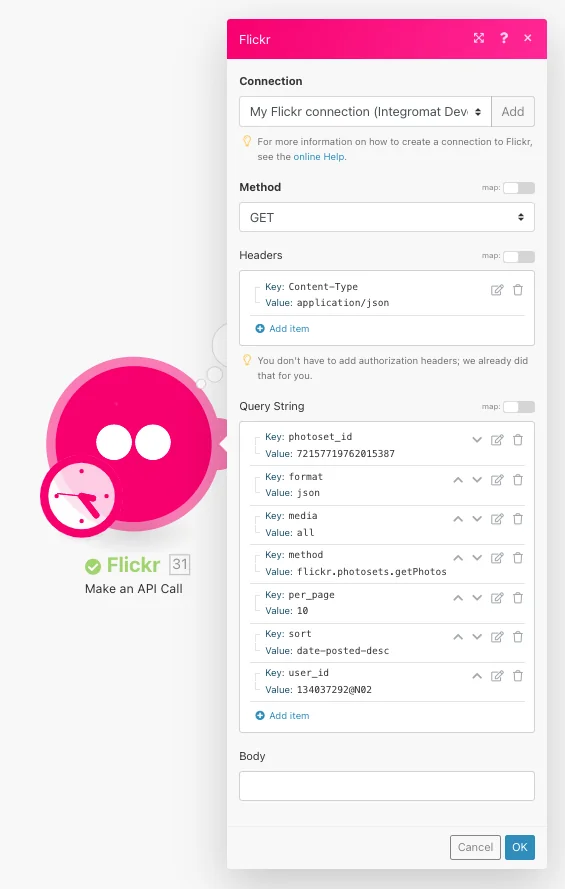
The following API call returns a user’s photoset ID:
Method:
GET
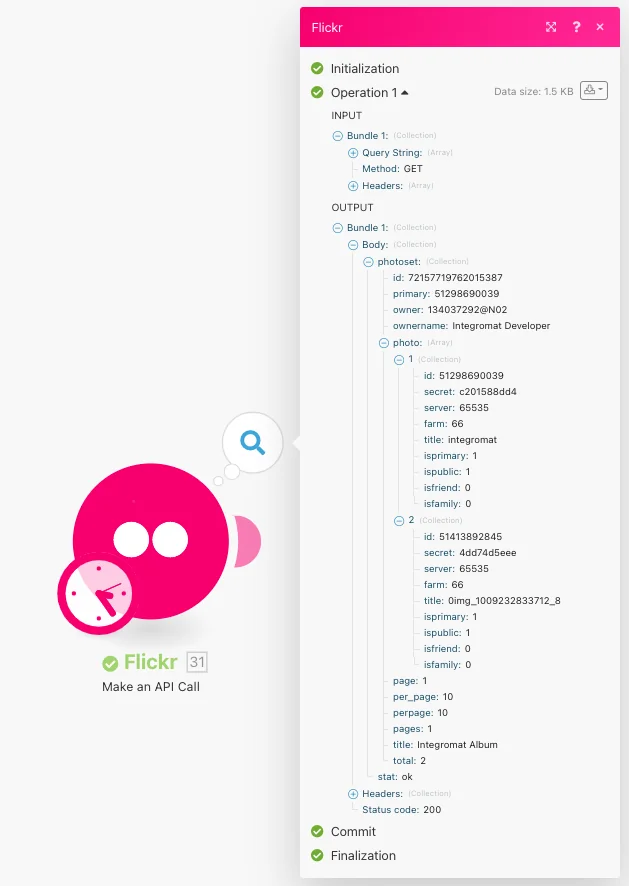
Matches of the search can be found in the module’s Output under Bundle > Body. Our example returned 1 photoset:
Legacy article, imported from the original Boost.space knowledge base (/knowledge-base/applications/file-and-document-management/flickr/).

