Twilio Verify
The Twilio Verify modules enable you to create, update, list, retrieve, and delete the verification services and verifications in your Twilio Verify account.
Getting Started with Twilio Verify
Prerequisites
- A Twilio Verify account – create an account at twilio.com/verify.
The module dialog fields that are displayed in bold (in the Boost.space Integrator scenario, not in this documentation article) are mandatory!
Connect Twilio Verify to Boost.space Integrator
To connect your Twilio Verify account to Boost.space Integrator you need to obtain the API token from your Twilio Verify account and insert it in the Create a connection dialog in the Boost.space Integrator module.
-
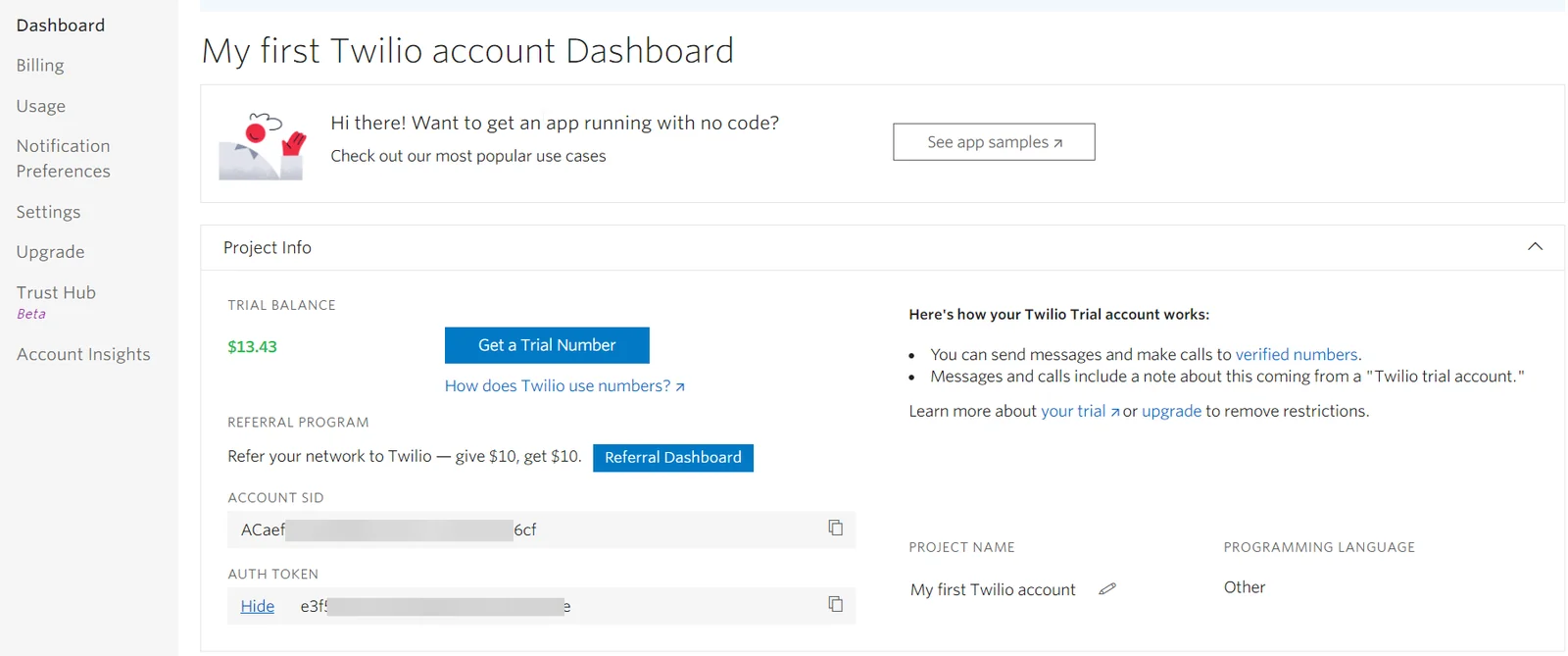
Log in to your Twilio Verify account.
-
Copy the Account SID and API Token to a safe place.
-
Go to Boost.space Integrator and open the Twilio Verify module’s Create a connection dialog.
-
In the Connection name field, enter a name for the connection.
-
In the Account SID and API Token fields, enter the account SID and token details copied in step 3 and click Continue.
The connection has been established.
Verification Services

List Verification Services
Fetches all of the verification services.
Connection
Establish a connection to your Twilio Verify account.
Verification Service SID
Select or map the account SID of the verification service to fetch the resource from.
Verification SID
Enter (map) the Twilio provided string that uniquely identifies the verification resource to fetch.
Get a Verification Service
Retrieves an existing verification service.
Connection
Establish a connection to your Twilio Verify account.
Verification Service SID
Select or map the Twilio provided string that uniquely identifies the verification service resource to fetch.
Create a Verification Service
Creates a new verification service.
Connection
Establish a connection to your Twilio Verify account.
Friendly Name
Enter (map) a name for the verification service. For example, my verify service. A maximum of 30 characters is allowed.
Code Length
Enter (map) the length of the verification code to generate. You can enter an integer between 4 and 10, inclusive.
Lookup enabled
Select whether to perform a lookup with each verification started and return info about the phone number.
DTMF Input Required
Select whether to ask the user to press a number before delivering the verification code in a phone call.
TTS Name
Enter (map) the name of an alternative text-to-speech service to use in phone calls. This field applies only to TTS languages.
PDS2 Enabled
Select whether to pass the PSD2 transaction parameters when starting a verification.
Mailer Send
Enter (map) the Mailer SID associated with the verify service. this information is used for creating verifications through the email channel.
Do Not Share Warning Enabled
Select whether to add a security warning at the end of an SMS verification body. By default, this option is disabled and applies only to SMS. For example, a sample message looks like this:Your AppName verification code is 1234. Don’t share this code with anyone; our employees will never ask for the code
Custom Code Enabled
Select whether to allow sending verifications with a custom code instead of a randomly generated one. This option is not available to all users. Please contact your account agent.
Push
Add the push details:
Include Date
Enter (map) the date on which you want to push the code. Optional configuration for the Push factors.If true, includes the date in the Challenge’s response.Otherwise, the date is omitted from the response.For more information, see the Challenge resource’s details parameter.
APN Credential SID
Enter (map) the APN Credential for this service. This information allows sending push notifications to iOS devices. For more information, see the Credential Resource.
FCM Credential SID
Enter (map) the FCM Credential for this service. This information allows sending push notifications to Android devices.
Update a Verification Service
Updates an existing verification service.
Connection
Establish a connection to your Twilio Verify account.
Verification Service SID
Select or map the Verification Service SID whose details you want to update.
Friendly Name
Enter (map) a name for the verification service. For example, my verify service. A maximum of 30 characters is allowed.
Code Length
Enter (map) the length of the verification code to generate. You can enter an integer between 4 and 10, inclusive.
Lookup enabled
Select whether to perform a lookup with each verification started and return info about the phone number.
DTMF Input Required
Select whether to ask the user to press a number before delivering the verification code in a phone call.
TTS Name
Enter (map) the name of an alternative text-to-speech service to use in phone calls. This field applies only to TTS languages.
PDS2 Enabled
Select whether to pass the PSD2 transaction parameters when starting a verification.
Mailer Send
Enter (map) the Mailer SID associated with the verify service. this information is used for creating verifications through the email channel.
Do Not Share Warning Enabled
Select whether to add a security warning at the end of an SMS verification body. By default, this option is disabled and applies only to SMS. For example, a sample message looks like this: Your AppName verification code is 1234. Don’t share this code with anyone; our employees will never ask for the code
Custom Code Enabled
Select whether to allow sending verifications with a custom code instead of a randomly generated one. This option is not available to all users. Please contact your account agent.
Push
Add the push details:
Include Date
Enter (map) the date on which you want to push the code. Optional configuration for the Push factors.If true, includes the date in the Challenge’s response.Otherwise, the date is omitted from the response.For more information, see the Challenge resource’s details parameter.
APN Credential SID
Enter (map) the APN Credential for this service. This information allows sending push notifications to iOS devices. For more information, see the Credential Resource.
FCM Credential SID
Enter (map) the FCM Credential for this service. This information allows sending push notifications to Android devices.
Delete a Verification Service
Deletes an existing verification service.
Establish a connection to your Twilio Verify account.
Verification Service SID
Select or map the Twilio provided string that uniquely identifies the verification service resource you want to delete.
Verifications
Get a Verification
Retrieves an existing verification.
Connection
Establish a connection to your Twilio Verify account.
Verification Service SID
Select or map the Verification Service SID whose details you want to retrieve.
Verification SID
Enter (map) the Twilio provided string that uniquely identifies the verification resource to fetch.
Start a Verification
Starts a new verification.
Connection
Establish a connection to your Twilio Verify account.
To
Enter (map) the phone number or email to verify. The phone numbers must be in E.164 format.
Channel
Select or map a method to verify:
-
Call
-
Email
-
SMS
Channel Configuration
Add the channel configurations:
FromEnter (map) the phone number. This field is required if submitting the ChannelConfiguration parameter.
From NameEnter (map) the name from which you want to configure the channel. This field is required if submitting the ChannelConfiguration parameter.
Template IDEnter (map) the Template ID. This information overrides the default template from the Verify Service email integration. To create a new template in the SendGrid dashboard, see the SendGrid docs.
SubstitutionsEnter (map) key-value pair variable substitution for dynamic email templates.{ "substitutions": { "username": "jdoe321", "first_name": "Jane", "last_name": "Doe" } }
Verification Service SID
Enter (map) the SID of the verification service under which you want to create the resource.
Rate Limits
Add the custom key-value pairs of programmable rate limits. The associated value pairs represent values in the request that you are rate-limiting on. You may include multiple rate limit values in each request.
Custom Friendly Name
Enter (map) the custom user-defined friendly name that overwrites the existing one in the verification message.
Custom Message
Enter (map) the text of a custom message to use for the verification.
Custom Code
Enter (map) a pre-generated code to use for verification. Enter a value between 4 and 10 characters long.
Amount
Enter (map) the amount of the associated PSD2 compliant transaction. This option requires enabling the PSD2 Service flag.
Payee
Enter (map) the payee of the associated PSD2 compliant transaction. This option requires enabling the PSD2 Service flag enabled.
Update a Verification Status
Updates a verification status.
Connection
Establish a connection to your Twilio Verify account.
Verification Service SID
Select or map the SID of the verification service to fetch the resource whose verification status you want to update.
Verification SID
Enter (map) the verification SID.
Status
Select or map the status of the verification:
-
Approved
-
Canceled
Check a Verification
Checks a verification.
Connection
Establish a connection to your Twilio Verify account.
Verification Service SID
Select or map the SID of the verification service to fetch t
Code
Enter (map) a pre-generated code to use for verification. Enter a value between 4 and 10 characters long.
To
Enter (map) the phone number or email to verify. The phone numbers must be in E.164 format.
Verification SID
Enter (map) the verification SID that uniquely identifies the verification code. . Either this parameter or the phone number/email must be specified.
Amount
Enter (map) the amount of the associated PSD2 compliant transaction. This option requires enabling the PSD2 Service flag.
Payee
Enter (map) the payee of the associated PSD2 compliant transaction. This option requires enabling the PSD2 Service flag enabled.
Other
Make an API Call
Performs an arbitrary authorized API call.
Connection
Establish a connection to your Twilio Verify account.
URL
Enter a path relative to https://verify.twilio.com. For example: /v1/Services
For the list of available endpoints, refer to the Twilio Verify API Documentation.
Method
Select the HTTP method you want to use:
GET
to retrieve information for an entry.
POST
to create a new entry.
PUT
to update/replace an existing entry.
PATCH
to make a partial entry update.
DELETE
to delete an entry.
Headers
Enter the desired request headers. You don’t have to add authorization headers; we already did that for you.
Query String
Enter the request query string.
Body
Enter the body content for your API call.
Example of Use – List Services
The following API call returns all the services from your Twilio Verify account:
URL:
/v1/Services
Method:
GET
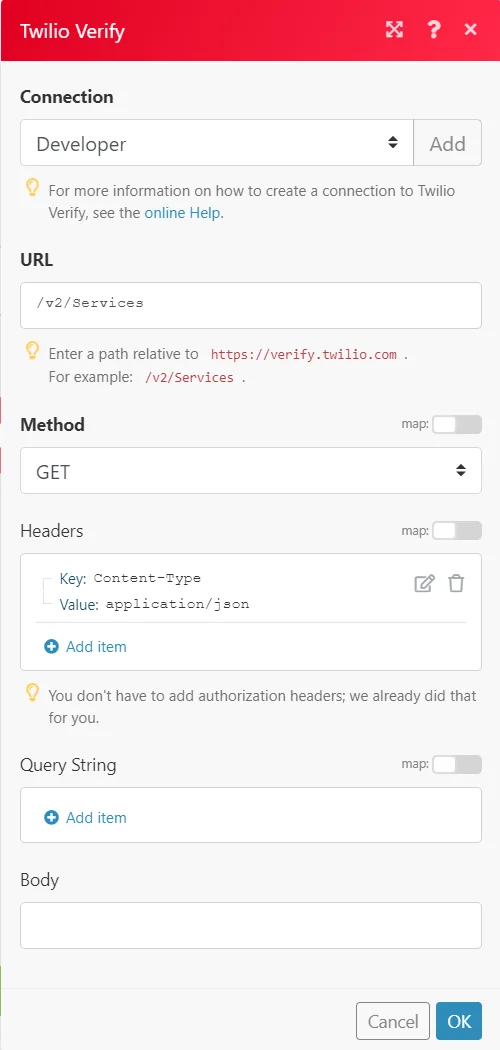
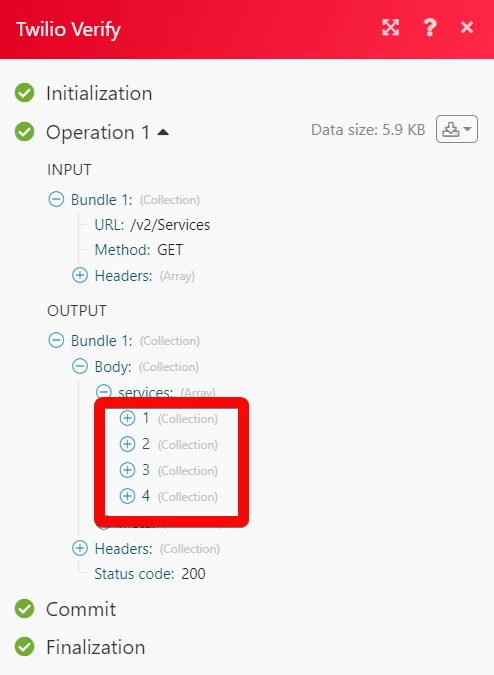
Matches of the search can be found in the module’s Output under Bundle > Body > services.
In our example, 4 services were returned:
Legacy article, imported from the original Boost.space knowledge base (/knowledge-base/applications/it-and-development/twilio-verify/).

